
Notepad++ can locate text without changing it, replace an individual match, or make repeated changes within a defined scope. The important part is deciding what should match and which text is allowed to change before you press a replacement button.
This Windows guide uses the official documentation checked on October 16, 2026. The current stable release is Notepad++ 8.9.8.1, released September 24, 2026. The general instructions are documentation-based; the controlled five-file example below adds an owner-assisted demonstration in Notepad++ 8.9.8.1 (64-bit). For the product overview, see our Notepad++ software profile.
Quick answer
Open Search > Replace or use the default Ctrl+H shortcut. Put the old text in Find what and the new text in Replace with. Choose Normal under Search Mode for a literal-text task. Find and inspect a match first, then use Replace for one selected match or Replace All for the intended range. Check selection, direction and Wrap around before replacing multiple matches.
Before you change anything
- Work on a copy of important files, or have a recoverable version-control checkpoint.
- Start with one harmless practice document, not a system or application configuration file.
- Review the search text, replacement text, matching options and scope. Notepad++ remembers search options, so a previous task may have left an unsuitable mode enabled.
- Use Find before replacement. A matching result is an opportunity to check intent, not proof that every match should change.
These instructions describe the default English labels and shortcuts documented in the official searching manual. Shortcuts can be customized; check the menu if a default key combination behaves differently.
Find text in the current document
- Activate the document you want to search.
- Choose Search > Find, or use the default Ctrl+F.
- Enter the text in Find what. For example, use
colourin a practice paragraph. - Select Normal for literal text and review the matching options.
- Choose Find Next to move to a match without changing it. Use the default F3 for the next match or Shift+F3 for the previous match.
- Choose Close when finished with the dialog.
Backward direction changes the dialog search direction. Wrap around lets a search continue at the other end of the document instead of stopping at the boundary. Keep direction and wrapping deliberate rather than treating them as cosmetic preferences.
Replace one match first
- Open Search > Replace or press Ctrl+H.
- Set Find what to
colourand Replace with tocolor. - Use Find Next and inspect the highlighted occurrence in context.
- Choose Replace if that selected match should change. Continue reviewing individual matches as needed.
The documented Replace action changes the currently selected match. If no matching occurrence is selected, it behaves like Find Next and highlights the next match instead. Do not assume every click necessarily performed a replacement. Also check that the replacement field is intentional: an empty Replace with field deletes matched text.
Use Replace All with an explicit scope
Replace All is not automatically safe. Back up important text, find representative matches first, and confirm the replacement before changing a whole range.
For a straightforward whole-document task, keep In selection off and enable Wrap around. The manual documents a pass through the entire active document in that combination. This is different from a caret-limited operation:
- With Wrap around off, no selection, and forward direction, Replace All covers the caret-to-end range.
- With Wrap around off, no selection, and Backward direction enabled, it covers the start-to-caret range.
- With In selection enabled and text selected, Replace All is restricted to that selection.
Existing selections can also affect range boundaries when In selection is off and wrapping is off. Avoid combining unfamiliar settings; use the manual’s range table when that distinction matters. After replacement, read the reported result and inspect the changed text before saving. A replacement count does not establish that the changes were correct.
Match case and whole words
Enable Match case when capitalization must be respected. In a simple literal-text example, searching for it will not match It or IT with that option enabled.
Match whole word only limits matching according to word boundaries. The manual’s basic example is that it does not match inside hitch. Do not generalize that example to every punctuation or Unicode combination: word-character preferences and the text itself can affect boundaries. Inspect actual matches before replacing them.
Choose the right search mode
| Mode | Use and caution |
|---|---|
| Normal | Literal text. Start here for ordinary words and typos. |
| Extended | Recognizes documented escape sequences, such as a tab represented by backslash plus t. Not a full regex mode. |
| Regular expression | Pattern matching. Review the official syntax and test a small sample before replacement. |
In Normal, special-looking characters are treated as text rather than regex instructions. Extended supports escapes described in the Extended Search Mode documentation. Do not switch modes just because a search returns no results; first check the text and scope.
Replace only inside selected text
- Select the exact block that may change.
- Open the Replace tab and recheck both fields; opening a search dialog can automatically populate Find what from the selection.
- Enable In selection and verify that the intended selection is still present.
- Use Replace All, then inspect that block and the surrounding text.
This checkbox does not make every search command selection-only. The manual specifically says that actions such as Find Next continue to operate over the document. Do not mistake a match found outside the selection for the intended replacement range.
Search across all open documents
Find All in All Opened Documents searches the document buffers currently open in Notepad++ and lists matches in Search results. It is useful for locating a phrase across several tabs without changing their contents. Find All in Current Document is the active-document alternative.
Replace All in All Opened Documents is a separate, broader action. It can change multiple open documents, not just the active tab. Use it only when every affected document belongs in the task, with recoverable copies and a review of the results. It is not interchangeable with a folder search.
Find text in a folder
Open Search > Find in Files, or use the documented default Ctrl+Shift+F. Enter the search text, set Directory to the intended folder, and review Filters. For a practice folder of plain-text files, *.txt is a focused filter rather than a request to process every file.
Review In all sub-folders and In hidden folders before choosing Find All. The former includes nested folders; the latter includes hidden subfolders. This scope comes from directory and filter choices, not merely the tabs you have open. The official Find in Files documentation also notes that an open editing buffer can take priority over the saved disk contents when searching a file.
Replace in Files: keep the safety boundary clear
The official manual documents folder-based replacement through Find in Files and names the Replace in Files action. This can affect many files. Make a backup or version-control checkpoint first, search the same folder with the same filters, and review the matches before considering a replacement.
The controlled example below uses disposable files only. Practice on a separate copy, confirm nested/hidden-folder scope, and do not rely on ordinary Undo to recover every disk-file change. No guarantee of recovery after closing or reopening files is established here.
Controlled example: replace text across five test files
For a practical example, we used an owner-assisted demonstration in Notepad++ 8.9.8.1 (64-bit). Five disposable files each contained one instance of SoftVerza Demo Text. Their names were file-1.txt, file-2.txt, file-3.html, file-4.php, and file-5.js. These were simple text samples with different extensions, not working HTML, PHP, or JavaScript programs. An independent backup folder retained the original text outside the search directory.
-
Start with a disposable working copy. Our search folder was the isolated demo working folder. The separate
npp-multi-file-replace-originalfolder was not searched. Choose an equally narrow practice folder of your own, never a drive root or a real project directory. -
Open Search > Find in Files. Enter
SoftVerza Demo Textin Find what. Set Directory to the working folder and Filters to*.txt *.html *.php *.js. Spaces separate these patterns; do not replace the spaces with commas or semicolons. Select Normal under Search Mode and enable Match case. In this demonstration, In all sub-folders was enabled and In hidden folders was disabled; the five sample files were directly inside the working folder. -
Run Find All before replacing anything. The initial result was five hits in five files of five searched. Read the filenames and matching lines, not just the total. Our setup screenshot shows the intended paths in the results, even though the Directory field is visually truncated. Stop if an unexpected file or directory appears. Find All searches for matches; it does not perform replacement.
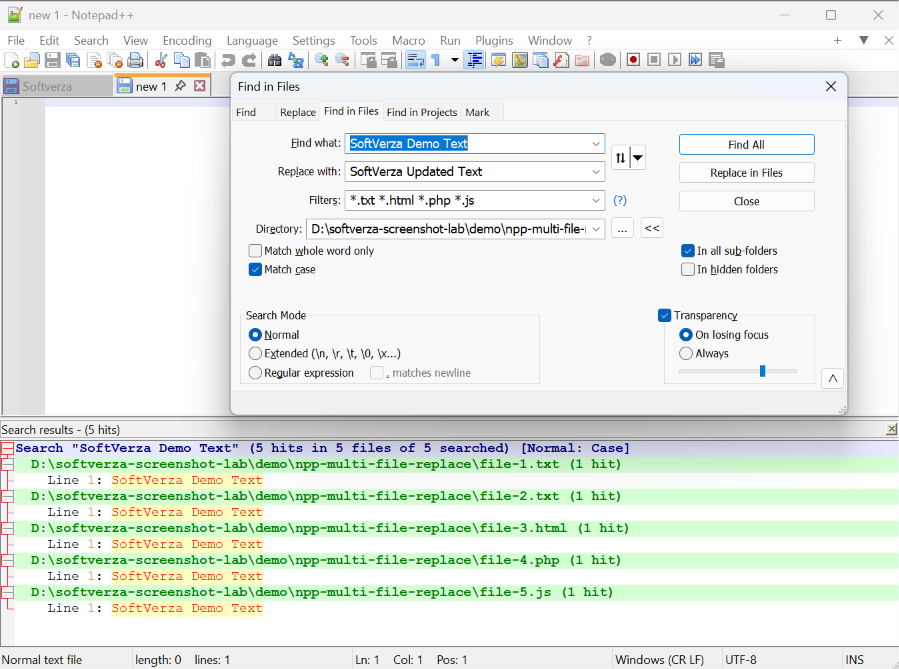
In the controlled demo, Find All returned five matches across five synthetic files before replacement. The Directory field is truncated, but the results show the intended demo-folder paths. -
Before Replace in Files: confirm the folder, filters, and Find All results. Work on disposable copies for practice and keep backups or a recoverable version-control checkpoint for important files. Do not assume Ctrl+Z will restore every file changed by a folder-wide replacement.
Reconfirm the replacement scope. Enter
SoftVerza Updated Textin Replace with, then check both phrases, Directory, Filters, case setting, and Normal mode again. Replace in Files is a button inside the Find in Files tab, not a separate tab. In the owner-operated demo, this action was run once against the isolated working folder. Do not infer confirmation-dialog wording from the screenshots; read any prompt your installation actually presents before continuing. -
Verify both phrases afterward. Searching again for
SoftVerza Demo Textreturned zero hits in zero files of five searched. Searching forSoftVerza Updated Textreturned five hits in five files of five searched. The Search results panel retains earlier searches, so an older entry containing the original phrase is not evidence that the phrase remains in the files. Check the query and result header for each search.
After replacement, the new phrase appeared in all five demo files. The panel also retains earlier searches, including historical old-phrase matches; read each search header separately. -
Inspect the changed files, too. The opened
file-5.jssample shows the replacement text. Independent file inspection confirmed one replacement phrase in each working file, no original phrase remaining, and the original phrase still present in all five backup files. This verifies our small example, not every file format or configuration. Keep recoverable copies; do not assume a single Undo will reverse a whole folder operation.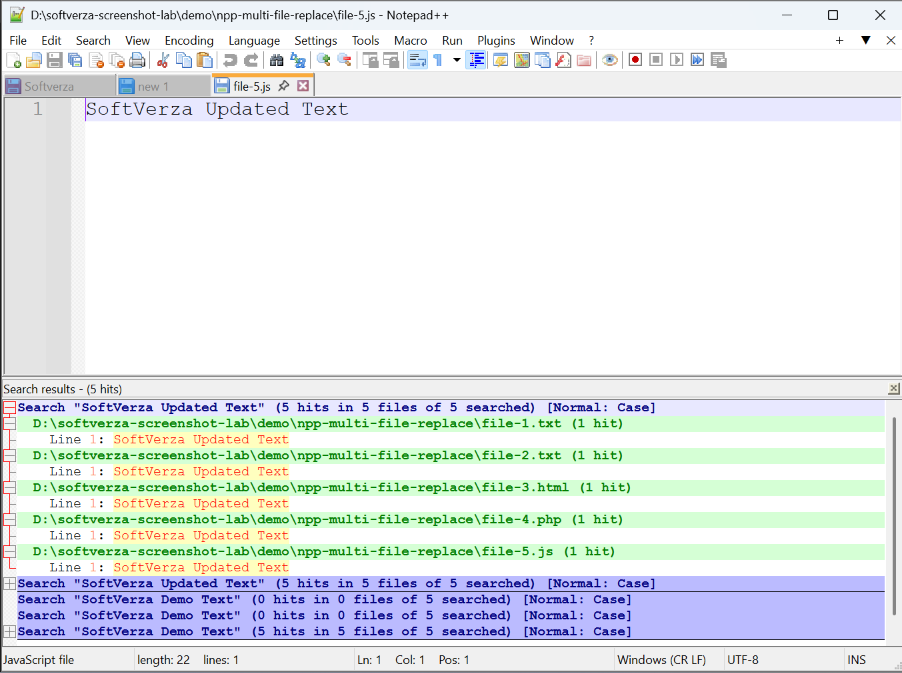
The synthetic file-5.js sample contains the updated text after the controlled replacement. It is a plain-text sample, not a working JavaScript program.
When regular expressions are useful
Regular expression is an optional advanced choice for patterns rather than a fixed literal phrase. The official regex documentation describes Notepad++’s Boost-based engine and replacement syntax. This guide deliberately supplies no pattern recipe or engine-specific shortcut.
Pattern matching can select more than intended. Use a copy and a small sample before any bulk change. In regex mode, the ordinary whole-word checkbox is disabled, and pattern flags can override the case checkbox; do not assume the basic literal-text controls behave identically in every mode.
Undo and common mistakes
The official Edit menu documentation describes Undo as reversing an earlier editing operation. It can help with recent unintended document edits, but it is not a substitute for backups and this guide makes no promise of recovery after closing and reopening.
- Using Replace All without checking matches and replacement text.
- Leaving a remembered regex or case-sensitive setting enabled.
- Confusing current-document, selected-text, open-document and directory scopes.
- Choosing all-open-document replacement when only one tab should change.
- Searching the wrong directory or including unwanted subfolders.
- Leaving Replace with empty when deletion was not intended.
Frequently asked questions
What is the shortcut for Replace?
The documented default is Ctrl+H. It can be customized, so the Search menu is the safer reference for your installation.
Why did Replace only highlight a match?
If no match was selected, the documented behavior is to find and highlight the next match. Inspect that selection before replacing it.
Why did Replace All miss earlier text?
Check Wrap around, direction, caret position and selection. Without wrapping, a no-selection forward replacement covers the caret-to-end range rather than automatically the whole document.
Can I replace text in several files?
Yes, the documented open-document and folder-based workflows are different scopes. Find first, keep recoverable copies, and choose the scope deliberately rather than treating either as the single-document Replace All button.
For a broader assessment of the editor rather than more replacement instructions, read our Notepad++ review.
How this tutorial was prepared
SoftVerza prepared this tutorial using official Notepad++ documentation, release information, and verified SoftVerza reference material. The multi-file example adds an owner-assisted demonstration using Notepad++ 8.9.8.1 (64-bit) and five synthetic text files; its screenshots and saved file contents were checked separately. Other instructions remain documentation-based. No controlled performance, large-file, regex-engine, or bulk-replacement benchmark was performed.
Official sources
- Notepad++ 8.9.8.1 release information.
- Official Online Help page, which identifies the user manual.
- Searching manual: dialog labels, matching, Replace All ranges, open documents, folder searches, shortcuts and search modes.
- Editing manual: Undo behavior.
Sources checked October 16, 2026. Translated interfaces and customized shortcuts can differ from the documented English defaults.
Final checklist
- Correct document, selection or folder identified.
- Search and replacement fields checked.
- Mode, case, whole-word, direction and wrapping reviewed.
- Matches inspected before replacement.
- Recoverable copy available and changed text checked before saving.