
Quick answer
Open your existing audio file in Audacity and select the section you want to keep. Split at the selection boundaries, then delete the unwanted outer clips, choosing Leave gap if prompted. Preview the remaining section, select its range again, and use Export audio → Export to computer → Selected audio to create a separate WAV. Check the exported file before replacing or sharing anything.
What you need
This walkthrough uses Audacity 4.0.1 x64 on Windows and one existing WAV. The official 4.0.1 release notes identify the build used for our test. Other builds may arrange controls differently.
Keep your original file and choose a different name for the finished export. You do not need to record new audio for these steps. If you need to make a recording first, use our separate Audacity recording tutorial.
For official download context, see the Audacity software profile. Have an output folder ready and use a simple single-file project for this workflow.
How to trim audio in Audacity
Step 1: Open the existing audio file
Choose File → Open, select your WAV, and wait for its clip to appear. Check the filename and approximate length before editing. Make sure the active project contains the intended file before editing.
We opened a 12-second synthetic WAV. Your file can have a different length; the important point is to identify the portion you want to retain.
Step 2: Select the part you want to keep
Drag inside the waveform to mark the wanted time range. Use the bottom Selection start and end fields to make the boundaries precise. Click the digits you need to change, then check both values and the displayed Duration. The large time display near the playback controls is the playhead position, not the pair of selection boundaries.
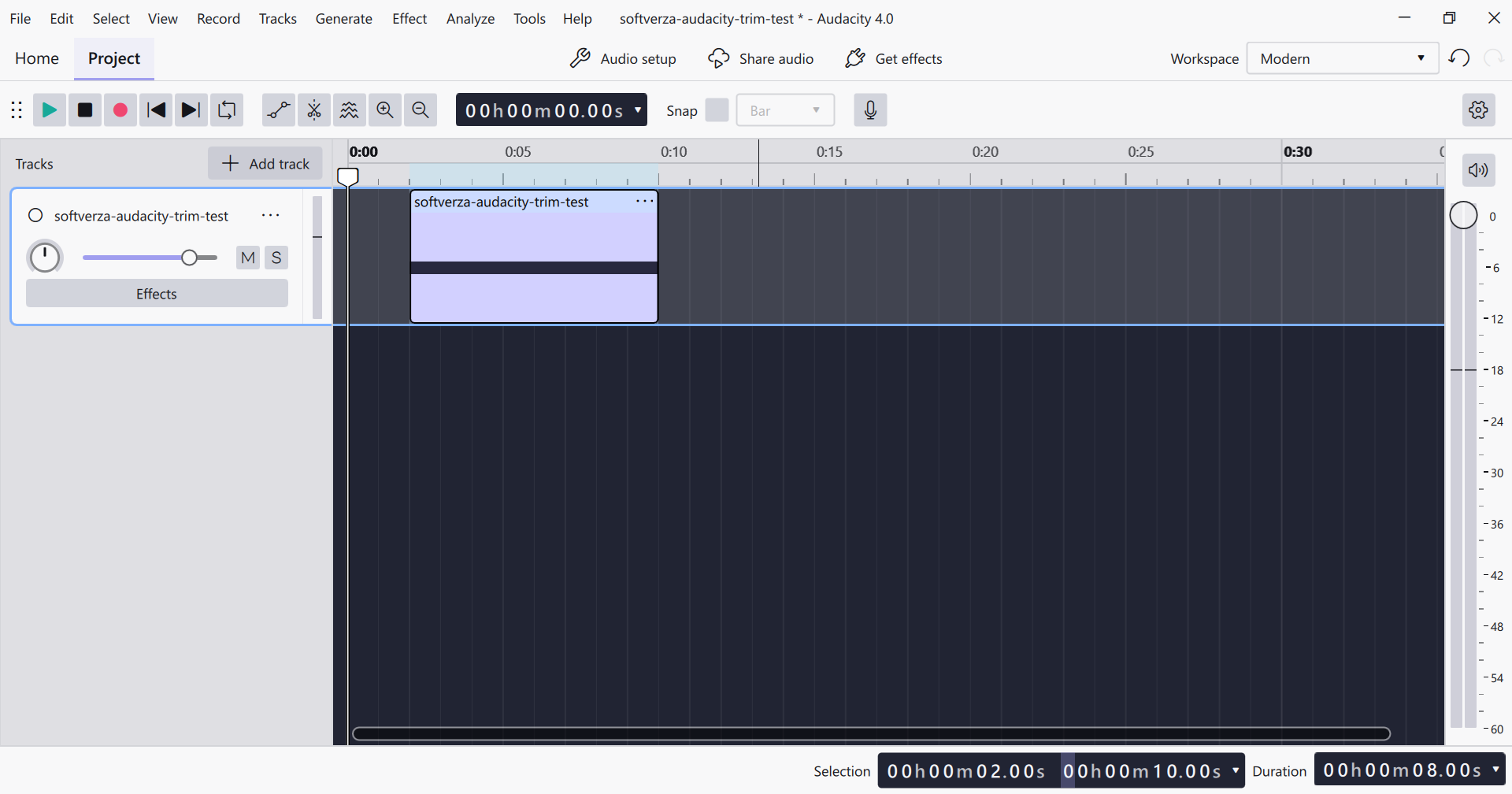
Our example starts at 2.00 seconds and ends at 10.00 seconds, giving an 8.00-second selection. Use boundaries appropriate to your own file. Keep the intended track and range active before splitting.

Step 3: Split at the boundaries and remove the outer clips
Use Edit → Clip → Split, or Ctrl+I, with the time range selected. This creates separate clip sections at its boundaries; splitting alone does not remove the unwanted material. The official editing guide also describes range selection and splitting.
Right-click the unwanted opening clip and choose Delete. If Audacity asks how deletion should behave, choose Leave gap, click Apply, and acknowledge the confirmation. This first-use choice sets the subsequent Delete behavior.
Right-click the unwanted ending clip and choose Delete as well. Check that only the wanted middle remains. This is the split-and-delete method used in our test.
With Leave gap, the retained clip keeps its timeline position. In our example, it still occupies 2–10 seconds even though it contains only eight seconds of audio. We did not move it to time zero.
Step 4: Preview the retained section
Place the playhead at the beginning of the retained clip and click Play. Listen through the start and end you intend to deliver, then click Stop. Check for missing wanted material or an unwanted lead-in before exporting.
If a boundary is wrong, correct it before continuing. Preview is a practical content check; it is not a sound-quality measurement or evidence that the edit improved fidelity.
Step 5: Export the trimmed audio as a separate WAV
Set the bottom Selection start and end fields to cover the retained section again. Confirm the duration, because selecting or deleting clips may have changed the range.
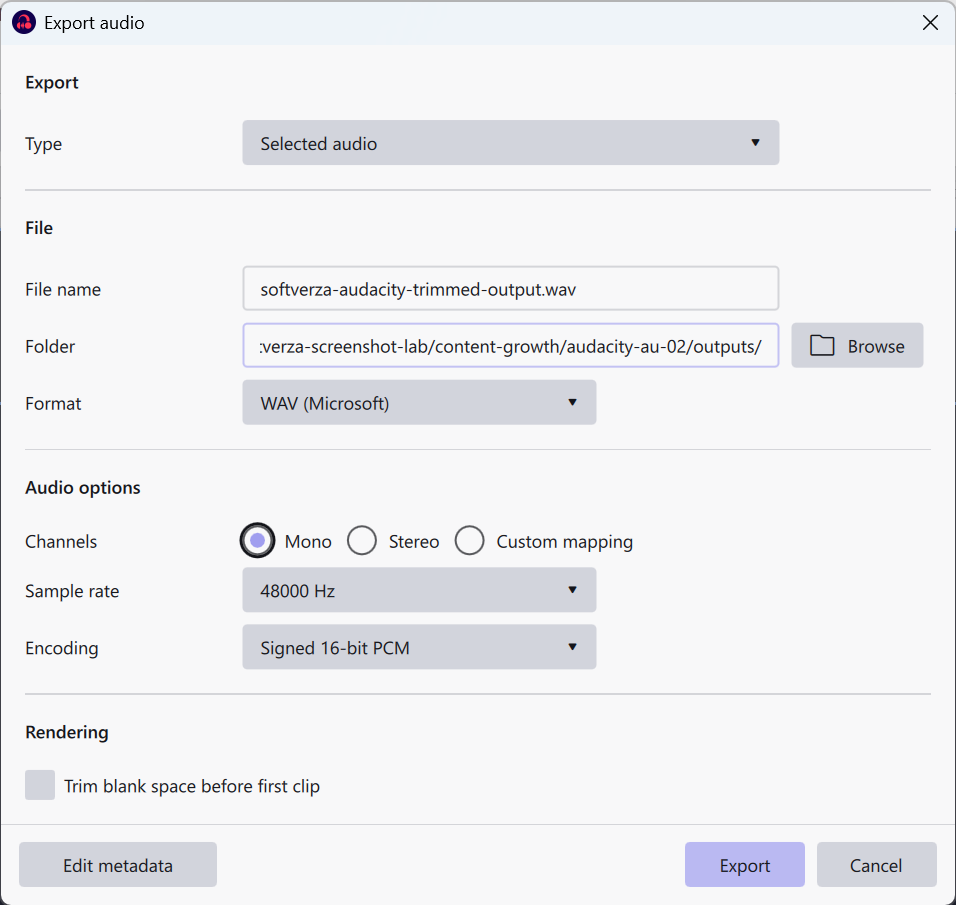
Open File → Export audio, or press Ctrl+Shift+E. Choose Export to computer when the local/cloud choice appears. In the export dialog:
- Set Type to Selected audio.
- Enter a distinct File name and choose your output Folder.
- Set Format to WAV (Microsoft).
- For the mono example shown here, use Mono, 48000 Hz, and Signed 16-bit PCM.
- Confirm the destination is separate from the source, then click Export.
These are the settings used for our synthetic mono test, not a universal preset for every source or delivery requirement. Do not choose Mono for a stereo job merely to copy the screenshot.
The Selected audio scope is important here: it exports the retained range without relying on the clip being at time zero. Do not assume an eight-second clip means the full project timeline is eight seconds long. The official export guide explains the scope choices.
Check the exported file
Open the destination folder and confirm the expected filename exists. Open that exported file in a player and check its beginning, ending, and duration. Make sure you are checking the new export rather than replaying the original or the Audacity project.
If the result contains the wrong section or an unexpected gap, return to Audacity and review the selection and export Type. Keep the source until you have checked the delivery file. Ordinary users do not need command-line media tools to follow this tutorial.
Save Project vs Export Audio
An editable Audacity project and a finished listening file serve different purposes. Audacity 4 uses .aup4 projects; save one if you want to continue editing. Export a WAV for ordinary playback or delivery. Saving the project does not replace that export.
We saved an editable project separately from the output WAV. The official project-saving guide explains local saving and distinguishes it from optional cloud saving.
What our hands-on test confirmed
SoftVerza tested Audacity 4.0.1 x64 on Windows using one 12-second synthetic WAV. We selected 2–10 seconds, split at the boundaries, and deleted both outer clips with Leave gap. Playback of the retained section ran, with playhead movement and meter activity observed, before local WAV export.
The exported file was 8.000 seconds, mono, 48 kHz, and 16-bit PCM. We independently checked it with ffprobe and a full ffmpeg decode, and verified that it contained the intended middle tone segments. A before-and-after file-hash comparison confirmed that the source WAV remained unchanged.
Those results cover this file and workflow. We did not compare audio quality, measure speed, test effects, or export MP3 for this example. Playback observation is not a subjective listening-quality assessment.
Common mistakes to avoid
- Changing the playhead instead of the selection: check the bottom start, end, and Duration fields before splitting and exporting.
- Stopping after Split: the unwanted outer clips still need to be removed.
- Confusing clip length with timeline position: Leave gap preserves position; use the intended export range.
- Exporting before checking the edit: preview the retained content and check the exported file afterward.
- Reusing the source filename or destination carelessly: give the finished file a distinct name and check any overwrite prompt before proceeding.
- Sending a project instead of audio: an .aup4 project is not the WAV export requested by a listener or service.
Frequently asked questions
Does trimming change the original audio file?
In our test, the source WAV's hash stayed unchanged after editing and exporting to a separate file. Keep that separation in your own workflow. This result does not mean every save, export, or overwrite choice is harmless, or that all editing is universally lossless.
Can I export MP3 instead of WAV?
Audacity's official export documentation lists MP3 and its bitrate options. That is a documented capability; we tested only WAV here. Use your destination's requirements when choosing a format rather than treating our WAV example as an MP3 quality comparison.
Final checklist
Open the existing file, mark the wanted range, split and remove the outer clips, and preview what remains. Recheck the selection, export it to a separate file, and open the output to confirm the result. Keep the original and, if needed, an editable project alongside the finished audio.