
Open the first video in HandBrake, choose a preset and a new output filename, then click Add to Queue. Open the next video, check its preset and destination, and add it too. Click Queue, review the jobs, and choose Start Queue. For one-at-a-time encoding, check that Maximum number of simultaneous encodes is set to 1 before starting.
These steps and screenshots use HandBrake 1.11.2 on Windows. SoftVerza tested two short synthetic videos on October 26, 2026; both queued jobs completed and produced valid output files. The test covered individual file addition, with the existing simultaneous-job limit set to one. See the official 1.11.2 release for that version’s release information.
What the HandBrake queue does
The queue holds encode jobs that you configure before processing them. For example, you can prepare two videos with separate output filenames and then start the queue once, instead of manually starting the second encode after the first finishes.
HandBrake’s official queue guide describes adding further sources to the queue. The walkthrough below follows the individual-file route demonstrated in our test.
What you need
- HandBrake installed on Windows. Our HandBrake software page provides an overview and official download information.
- Two or more videos you are permitted to process.
- An output folder with enough free space and a different output filename for each job.
You do not need to change HandBrake’s default output folder globally. You can choose each job’s destination in Save As.
How to add multiple videos to the HandBrake queue
Step 1 — Open the first video
Click Open Source, choose File, and select your first video. Wait for HandBrake to scan it.
Check the Source name and duration before continuing. In our example, the first clip was six seconds long. Its name appeared above the title and preset controls.
Step 2 — Choose a preset and output
Choose a built-in preset suitable for your intended output. We used Fast 480p30 for both short test clips; it is an example for this demonstration, not a recommendation for every resolution or use case. HandBrake’s preset guide explains the role of presets.
In Save As, check the destination folder and give the output a distinct name, such as queue-output-a.mp4. Keep the new output separate from the source file.
Check Save As after choosing the preset. In our test, selecting a preset repopulated the default destination, so we corrected the path before adding the job. Choosing a folder earlier does not replace this final check.
If deciding on compression settings is your main concern, see our separate HandBrake video-compression tutorial. Here, the focus is preparing and running the queue.

Step 3 — Add the first job to the queue
Click Add to Queue on the main toolbar. This adds the configured job without starting the encode.
Click Queue to check that the first job is listed. Its destination filename should match the name you chose. In our test, the queue showed one pending job at this point. Close the Queue window to return to the main window; do not delete the job.
Step 4 — Open the next video
Click Open Source again, choose File, and open the second video. Wait for the scan, then check that the Source name has changed to the intended clip.
The first job stays in the queue while you prepare the next one, as demonstrated by our two-file test.
Step 5 — Check the second destination and add the job
Check the preset again. The same Fast 480p30 preset remained selected when we opened the second source, but you should verify the displayed preset rather than assume it is correct.
Set Save As to the intended output folder and use a second filename, such as queue-output-b.mp4. Opening our second source populated the default destination again, so we explicitly corrected it before queueing.
Click Add to Queue. Repeat the source, preset, destination and add sequence for any other videos you intend to prepare. Our hands-on test covered two jobs only.
Step 6 — Review the Queue
Click Queue on the toolbar. Before starting, check:
- The number of pending jobs matches the number you intended to add.
- Each output filename is distinct.
- Selecting each job shows the expected Source, Destination and Preset in its Summary.
- No unwanted job is included.
We observed exactly two pending jobs, with the first clip mapped to output A and the second to output B. The screenshot shows the first job selected and its details on the right.

Step 7 — Start the queue
For videos to run one after another, first check Tools → Preferences → Advanced → Process Isolation → Maximum number of simultaneous encodes. Use 1 for this workflow, then return to the queue before starting it. Our existing value was already one, so we did not change it.
HandBrake also supports simultaneous encodes on Windows, as described in its process-isolation documentation. Do not assume every queue runs one job at a time regardless of that setting.
In the Queue window, choose Start Queue. Leave HandBrake open while the jobs process. In our test, the first job ran while the second waited, and both eventually showed completed results.
How to verify completed outputs
Check each job’s status rather than relying only on the pending count. In our run, both rows showed green completion icons, selecting either job showed Complete, and the pending count reached zero.
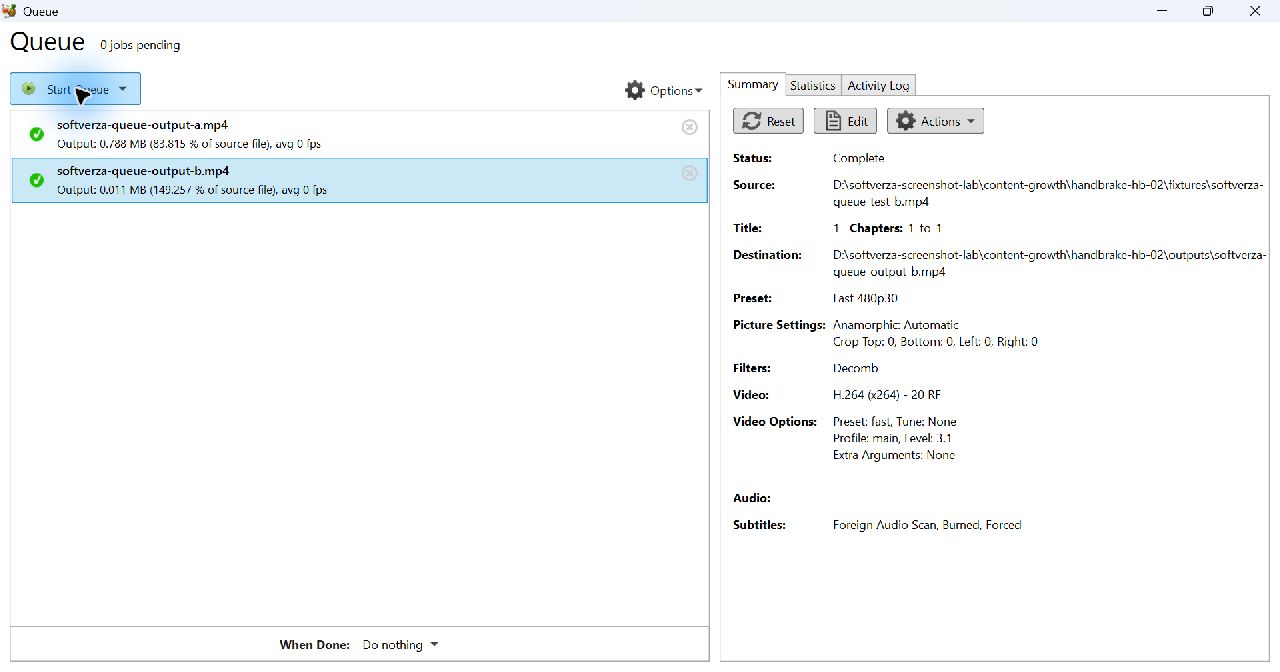
Open your chosen output folder and confirm that each expected filename exists. Check that the files are not empty, then open them in your usual video player if you want to verify playback and content. Make sure you are opening the new outputs rather than the original sources.
If an expected file is missing or a job reports an error, inspect that job’s status and destination before assuming the whole queue succeeded.
Hands-on test results
SoftVerza tested HandBrake 1.11.2 on Windows with two synthetic videos: a six-second clip and an eight-second clip, both 640×360 and without audio. We added them individually using Fast 480p30 and separate MP4 output filenames.
The queue displayed both jobs, then processed them successfully with its existing one-job limit. Both output files were created. ffprobe confirmed H.264 video at 640×360 with the expected six- and eight-second durations, and both files decoded without errors. File-integrity checks confirmed that neither source file changed.
These checks establish the result for these two clips. They do not measure encoding speed or visual-quality superiority. The second output was larger than its very small synthetic source, so successful encoding should not be taken as a promise of a smaller file.
Useful queue tips
- Choose settings before adding each job. Review the preset and destination as part of every addition.
- Use separate output names. Similar source names make it especially important to check each job’s destination.
- Check the whole queue before starting. Two intended files should produce two intended jobs, with no accidental extras.
- Keep bulk addition separate from this method. HandBrake documents folder/multi-title addition as another route. That feature was not exercised in this test; the steps here add files individually.
Limits of this walkthrough
The hands-on evidence covers one Windows build and two short silent MP4 sources using one preset. It does not establish support for every source format or preset, audio/subtitle preservation, unlimited queue size, hardware-encoder performance, queue persistence after closing, failed-job recovery, reordering, or pause/resume behavior.
FAQ
Can queued videos use different presets?
Yes. Choose the intended preset before adding each job. HandBrake 1.11.2’s Windows source code shows that each added job stores its current encode settings. This behavior is supported by the official implementation; our hands-on run used the same preset for both clips and did not test mixed presets.
Does HandBrake always process queued jobs one at a time?
No. HandBrake documents support for multiple simultaneous encodes on Windows. For the sequential workflow here, check that the maximum simultaneous-encode setting is one. Our test used that value; it did not test concurrent encoding.
Finish by checking the files
Prepare each video’s settings and destination, add it to the queue, and review the pending jobs before choosing Start Queue. Use the one-job setting when you want sequential processing. Once processing ends, check each completed status and the actual output files instead of treating a zero pending count as the only success check.