
Open the RAR archive inside PeaZip, select the files you want, and click Extract on the toolbar. Choose an output folder and confirm with OK. Use Extract to retain the archived folder paths, or choose Extract (without path) in the Function list to put the selected files together in one folder.
Selective extraction is useful when you need a report or a few images from a larger archive. You can keep the rest of the archive intact without adding every file to your destination.
Tested context: We tested PeaZip 11.4.0 Win64 portable on Windows 11 Pro 26H2 on October 25, 2026, using one genuine RAR5 archive containing seven harmless sample files. This guide combines two selected-file extraction tests with official documentation. We did not benchmark performance.
What you need
- PeaZip for Windows. Start from the official PeaZip portable download page, which listed 11.4.0 when checked on October 25, 2026.
- A RAR archive you are authorized to access.
- A separate, empty output folder so you can identify the new results easily.
Our demonstration used the portable package. You do not need to change Windows file associations to follow the method below. The SoftVerza PeaZip software profile provides broader product background and official download links.
How to extract selected files from a RAR archive
Step 1 — Open the RAR in PeaZip
Launch PeaZip, click its address bar, enter the full path to your .rar file, and press Enter. This was the opening method used in our test.
If RAR files are already associated with PeaZip, the publisher also documents opening an archive by double-clicking it in File Explorer. See PeaZip’s selective-extraction instructions.
Confirm that you can see the archive’s contents before selecting anything. Selecting the RAR file itself in a filesystem view is different from selecting individual members inside it.
Step 2 — Select the files you want
Click a file to select it. PeaZip documents Ctrl-click for separate items and Shift selection for a consecutive range. Press F6 to show the archive contents in a flat view when files are spread across folders.
In our test, we clicked the first of three consecutive files and held Shift while pressing the Down arrow twice. This selected monthly-report.txt, project-notes.txt, and sample-image-01.png in flat view. We did not separately test nonadjacent Ctrl-click selection.
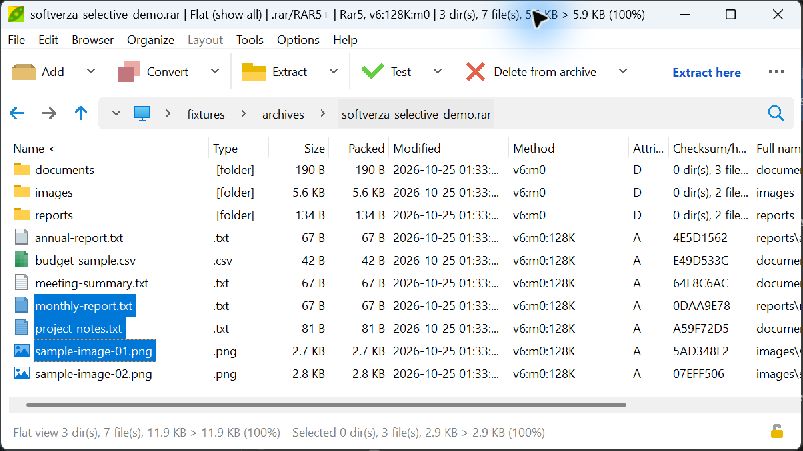
Check the highlighted rows and selection count. Avoid selecting a whole folder if you only want one file inside it.
Step 3 — Choose Extract
Click Extract on the main toolbar. The extraction screen should list the items you selected. In our example, it listed three files and no selected directories.
Check that the list contains only the files you want. Use Extract for this workflow; Extract all includes the rest of the archive.
Step 4 — Choose where to save the files
Set Output to your separate, empty destination. Leave Function set to Extract for the folder-preserving method shown here.
Our test left Extract in new folder and Extract to original path unchecked, while Extract then move to destination remained checked. Naming showed Skip existing files, but the destination was empty, so this did not test a naming conflict. Delete archives after extraction was disabled and unchecked.
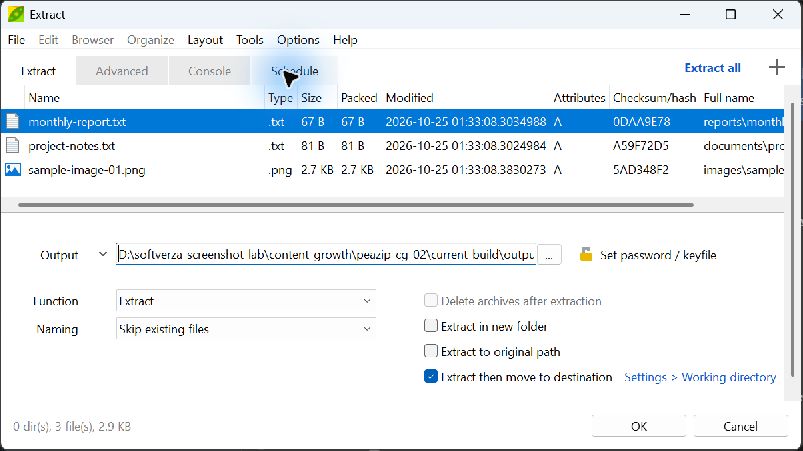
Review your own destination and options, then click OK. Keep the original archive while checking the results.
Step 5 — Verify the extracted files
Open the destination and check both filenames and folders. With our selected files, Extract produced:
output/
  documents/project-notes.txt
  images/sample-image-01.png
  reports/monthly-report.txt
The three folder names came from the archive. They are expected results, not evidence that every file in those folders was extracted. Inspect inside each folder: only the selected members should be present.
An empty destination makes this check clearer because older files cannot be mistaken for new output. A filename check establishes what appeared; comparing with known originals or trusted hashes provides a stronger content-integrity check. Our test included that comparison.
Extract vs. Extract (without path)
Both modes extracted the same three selected files in our PeaZip 11.4.0 test. The difference was their location.
- Extract: Retained the archived folders. For example,
project-notes.txtappeared insidedocumentsin the destination. - Extract (without path): Put
project-notes.txtdirectly in the destination, alongside the other selected files.
For the second outcome, repeat the selection, open Extract, and change Function to Extract (without path). Choose another empty output folder before confirming.
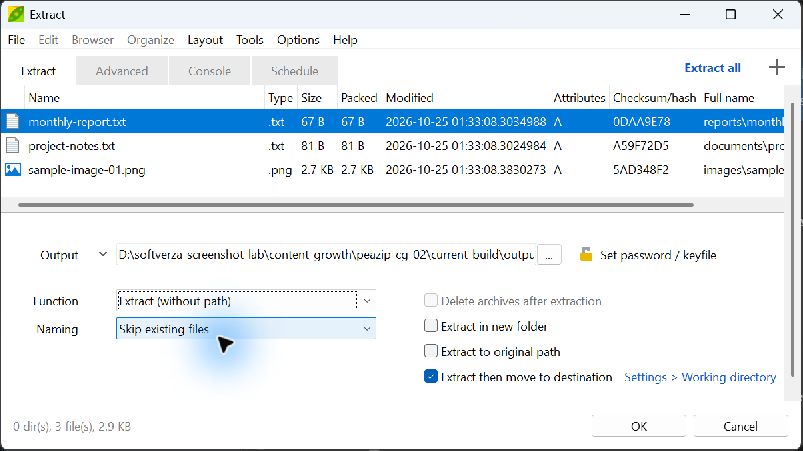
Our flattened output contained project-notes.txt, sample-image-01.png, and monthly-report.txt at the destination’s root, without the three archived folders.
PeaZip’s extraction documentation describes this paths-versus-flat distinction. Flattening also removes folder context: if different archived folders contain the same filename, review the resulting naming conflict carefully. Our selected filenames were distinct; overwrite and collision handling were not tested.
Hands-on verification
We ran both modes in PeaZip 11.4.0 Win64 portable on Windows 11 Pro 26H2, using the same genuine RAR5 test archive and three selected files. Each destination was empty before its run.
- Both modes: Exactly the three selected files appeared, and their SHA-256 values matched the source files.
- Extract: The archived folder paths were preserved.
- Extract (without path): The three filenames appeared directly in the destination.
All four unselected files remained absent: budget-sample.csv, meeting-summary.txt, sample-image-02.png, and annual-report.txt. We checked the destination and its subfolders. The archive and source files remained unchanged.
These findings apply to this build, test archive and configuration. We did not test password-protected archives, damaged archives, overwrite handling, all RAR variants, or comparative speed.
Common mistakes
- Selecting the archive instead of its contents. Open the RAR first, then highlight its individual members.
- Confusing flat view with flat extraction. F6 changes how you browse. The Function choice determines the extraction mode used here.
- Choosing an entire folder. Inspect the selected-item list if you only want particular files.
- Reusing a cluttered destination. Existing files make it harder to tell what the operation added.
- Expecting flattened output to retain folder context. Use Extract when those paths matter; check for duplicate names before flattening.
FAQ
Can PeaZip extract only one file from a RAR archive?
Yes. PeaZip documents single-file selection followed by extraction. Our hands-on test used a three-file subset rather than a separate one-file run.
Does PeaZip need WinRAR installed to extract RAR files?
PeaZip documents RAR and RAR5 extraction as available out of the box, without additional software. RAR creation is a separate capability with an external-component dependency. See the publisher’s RAR support explanation.
Can PeaZip extract password-protected RAR files?
PeaZip documents encrypted RAR extraction when the required password is available. We did not test it for this guide, and the method here does not recover a forgotten password.
Choose the output structure you need
For the workflow tested here, open the RAR, select its individual files, inspect the extraction list, and choose a clean destination. Keep Extract for archived folder paths or choose Extract (without path) for a single-level result. Verify the output before considering the task complete.
For a broader assessment of the application beyond this task, read the SoftVerza PeaZip review.