
7-Zip can create a new encrypted archive when you set a password during archive creation. The archive format controls the available encryption options: encrypting file contents and hiding the names inside the archive are separate choices.
This Windows desktop guide uses 7-Zip 26.04, dated October 5, 2026, verified on the official download page. The general guidance and format-dependent controls were checked against the official release-tagged source; the controlled example below adds an owner-assisted 7z creation and extraction demonstration, not a cross-application compatibility test. Localized installations may use translated labels.
Quick answer
In 7-Zip File Manager, select your files and choose Add. In the Add to Archive dialog, choose the archive format, enter a password, review the encryption method and, for 7z, enable Encrypt file names if you also want the internal names protected. Create a new archive, then verify that you can extract its contents with the password before relying on it.
Before you start
- Keep the original files. This tutorial creates a separate archive; it is not a folder-locking or backup strategy.
- Use a long, unique password or passphrase and store it securely. Do not reuse an account password.
- Know what software the recipient will use. Support for a file extension does not establish support for every encryption method within it.
- Choose a new archive filename and output location so this task does not update an older archive unintentionally.
For the product overview rather than this specific task, see the 7-Zip software profile.
Choose 7z or ZIP before entering the password
The official 7-Zip feature list confirms AES-256 encryption in both formats. The 26.04 dialog implementation supplies the more specific method choices and filename-encryption boundary below.
| Format | Password encryption | Method choices in 26.04 | Internal filename encryption |
|---|---|---|---|
| 7z | Supported | AES-256 | Supported when the filename option is enabled |
| ZIP | Supported | ZipCrypto or AES-256 | Not supported by this 7-Zip creation dialog |
Choose 7z if its supported encrypted-archive workflow suits you and the recipient, particularly when hiding internal names matters. If you need ZIP, explicitly check the encryption choice and recipient support. Neither format is universally best, and this guide does not rank cryptographic strength or promise all-device compatibility.
Step 1: Select the files in 7-Zip File Manager
Open 7-Zip File Manager, browse to the source location, and select the files or folder you intend to package. Check the selection rather than assuming every file in the directory will be included. This is a Windows File Manager workflow, not a Linux/macOS command-line procedure.
Step 2: Open Add to Archive
Choose Add to open the archive-creation dialog. The official Windows resources identify the toolbar action and the Add to Archive dialog and fields. This route avoids depending on how a particular Windows Explorer context menu is configured.
Review Archive for the destination name and location. Use a name that does not disclose information you intend to keep private: internal filename encryption does not hide the archive file’s own name.
Step 3: Set the archive format
Use Archive format to select 7z or ZIP. Choose the format before reviewing the encryption section because the available controls depend on it. Compression method and encryption method are different settings; choosing a compression level does not supply a password.
Step 4: Enter and confirm the password
In the Encryption section, fill Enter password and Reenter password. Keep password visibility off when other people can see the screen. The source includes a Show Password control; when enabled, it reveals the entry and hides the confirmation field. Do not mistake a hidden confirmation field for missing encryption support.
If the dialog reports that the entries do not match, correct them rather than proceeding with a guessed value. The dialog validates matching entries when confirmation is shown. Do not put a real password in a screenshot, archive name, shared note or support request.
Step 5: Review the encryption method
Check Encryption method. For 7z, the verified 26.04 selector offers AES-256. For ZIP, it offers ZipCrypto and AES-256; do not assume the remembered or initial selection is the one you intend to use.
If you select ZIP AES-256, confirm that the recipient’s application can handle that method. A format/method mismatch is a compatibility question, not evidence that a password can be bypassed. The official 7z format documentation explains its AES-256 capability without establishing a guarantee for every password or receiving application.
Step 6: Decide whether to hide internal filenames
For 7z, enable Encrypt file names when you want internal names protected as well as file data. In the official implementation, the 7z format has the filename-encryption capability and ZIP does not; the control is enabled and shown only for a supporting format.
Without that 7z option, do not assume that encrypting file contents also hides the file list. ZIP AES-256 is not a substitute for 7z filename encryption in this workflow. The outer archive name, its existence and its size are still visible to someone who can access the archive file.
Step 7: Create a new archive while keeping originals
Recheck the selected format, destination, password and filename choice. Leave Delete files after compression unchecked. Choose OK and allow archive creation to finish; investigate any reported error before treating the output as complete.
No particular compression level is required by this tutorial, and no encryption-speed result is promised. If you are unsure about a setting outside the task, leave it alone rather than changing advanced parameters.
Step 8: Verify opening and extraction
- Close the creation dialog and open the newly created archive in a fresh File Manager session.
- Check whether the internal names are visible without entering the password. If you intended 7z filename protection, verify that the password is needed before the file list can be read.
- Use Extract and choose a separate temporary destination, not an overwrite of the originals.
- Enter the password when requested and open representative extracted files to confirm that the intended data is usable.
- Stop if extraction fails. Recheck the password and archive before sharing or deleting anything; do not treat every extraction error as a wrong-password diagnosis.
This is an operational check, not a cryptographic audit or proof of compatibility with every application. Do not delete the originals until the encrypted archive has been successfully opened and tested. Keep any backups you need independently.
Controlled example: create and verify an encrypted test archive
We added an owner-assisted example using 7-Zip 26.04 (x64), three disposable source files and separate backup, archive and extraction folders. The files were named demo-note.txt, demo-info.html and demo-data.csv. All three contained the same synthetic plain-text Lorem Ipsum content. Their extensions did not make them a working HTML page or realistic tabular CSV data, and this example does not test those formats’ application behavior.
-
Create a protected copy, not a locked source folder. The owner selected only the three synthetic files and chose Add in 7-Zip File Manager. The new output was named
softverza-demo.7zin the isolated archive folder, outside the source folder. The source and backup copies were retained throughout. Use an equally isolated practice set rather than personal documents or production files. -
Keep the originals while testing: creating an encrypted archive does not encrypt or remove the source files. Leave source deletion disabled, retain a recoverable backup, and verify extraction before deciding what to do with originals. Store the password securely; do not assume recovery will be available.
Inspect the settings before creating the archive. The captured Add to Archive dialog shows Archive format: 7z, Encryption method: AES-256, populated but masked password fields, Encrypt file names checked, and Delete files after compression unchecked. Show Password was also unchecked. Use a unique password stored securely; do not reuse an account credential. These controls document the selected configuration, not a measurement of password strength or a guarantee of security.
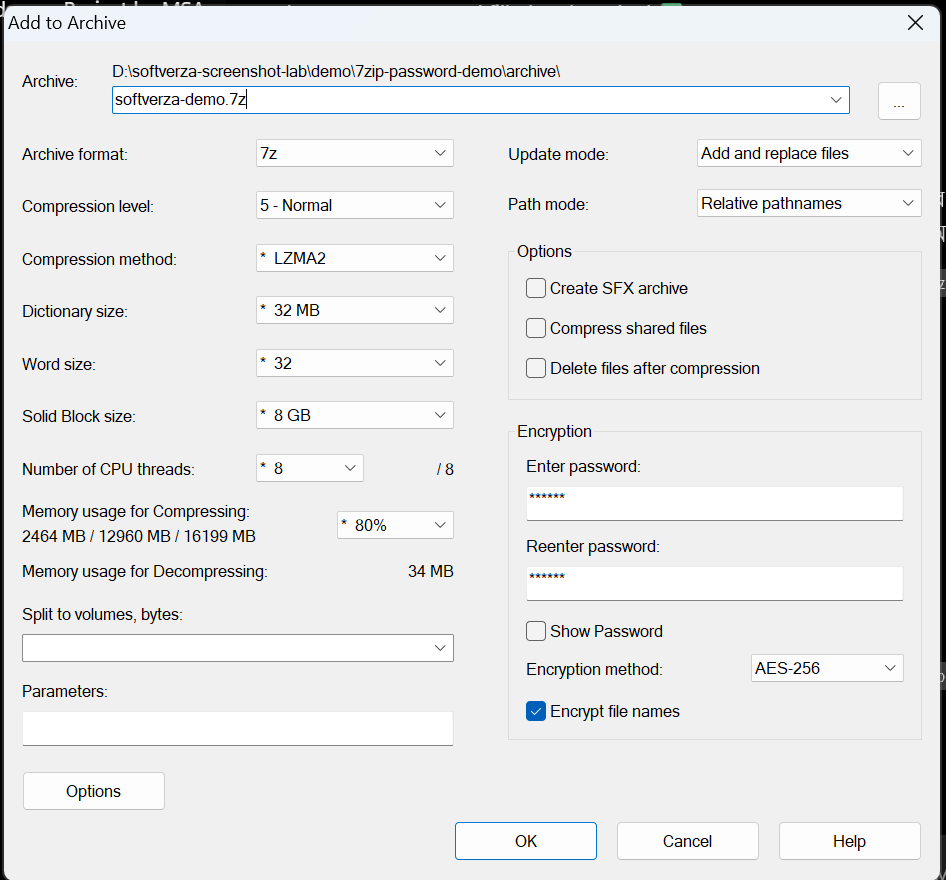
The 7z settings show AES-256, populated masked password fields, Encrypt file names enabled, and Delete files after compression disabled. The password is not disclosed. -
Check the output without confusing file associations with creation. The owner created the archive, and independent inspection found the new 1,023-byte file with a 7z signature. Explorer labels its type as PeaZip.7Z because of the Windows file association; that label does not identify the application that created it. The archive’s own name, existence and size remain visible even when internal names are encrypted.
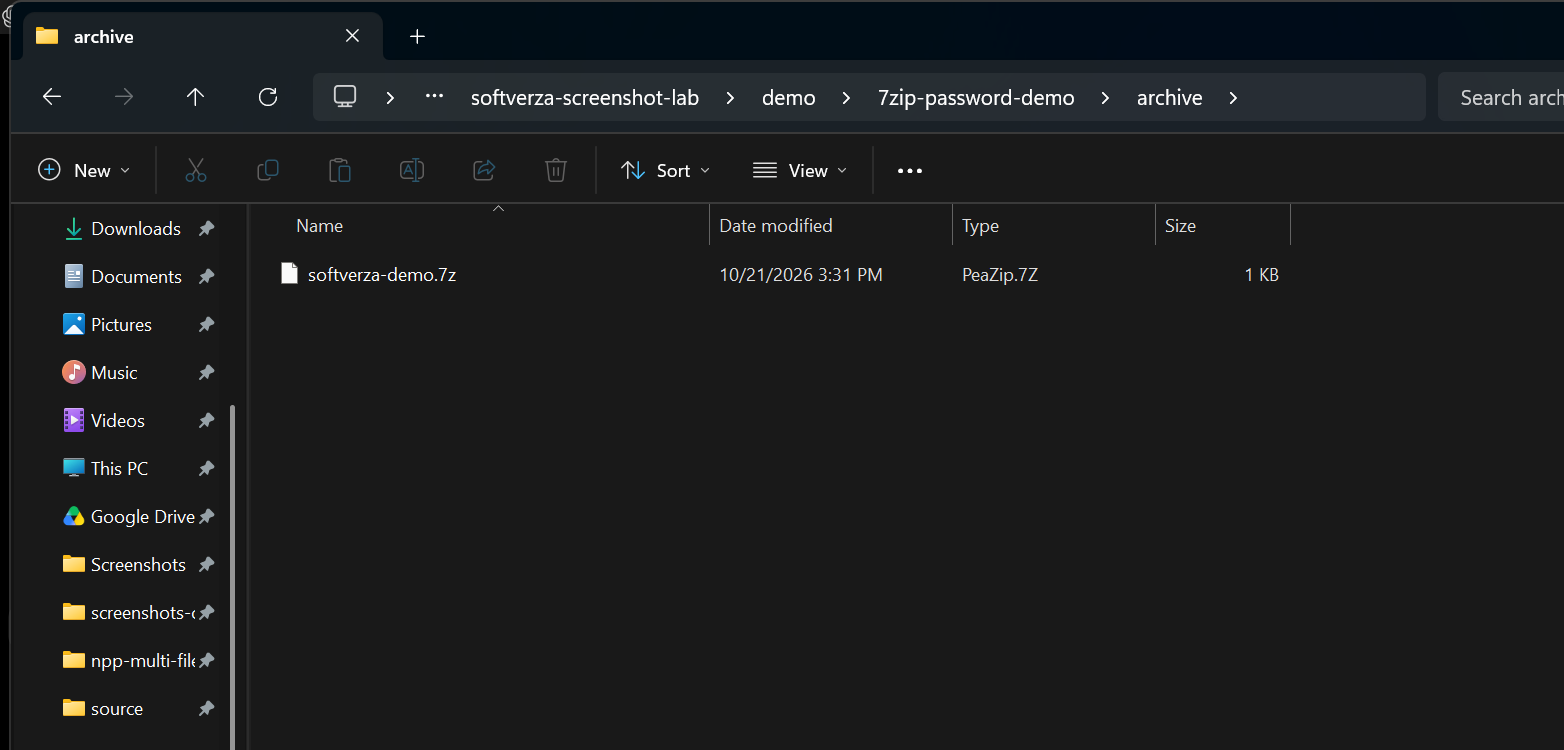
The test archive exists in its separate output folder. Explorer’s PeaZip.7Z type label reflects the Windows file association, not which application created the archive. -
Observe the password-required opening stage. Opening the test archive produced an Enter password prompt. Internal filenames were not visible in that captured state.
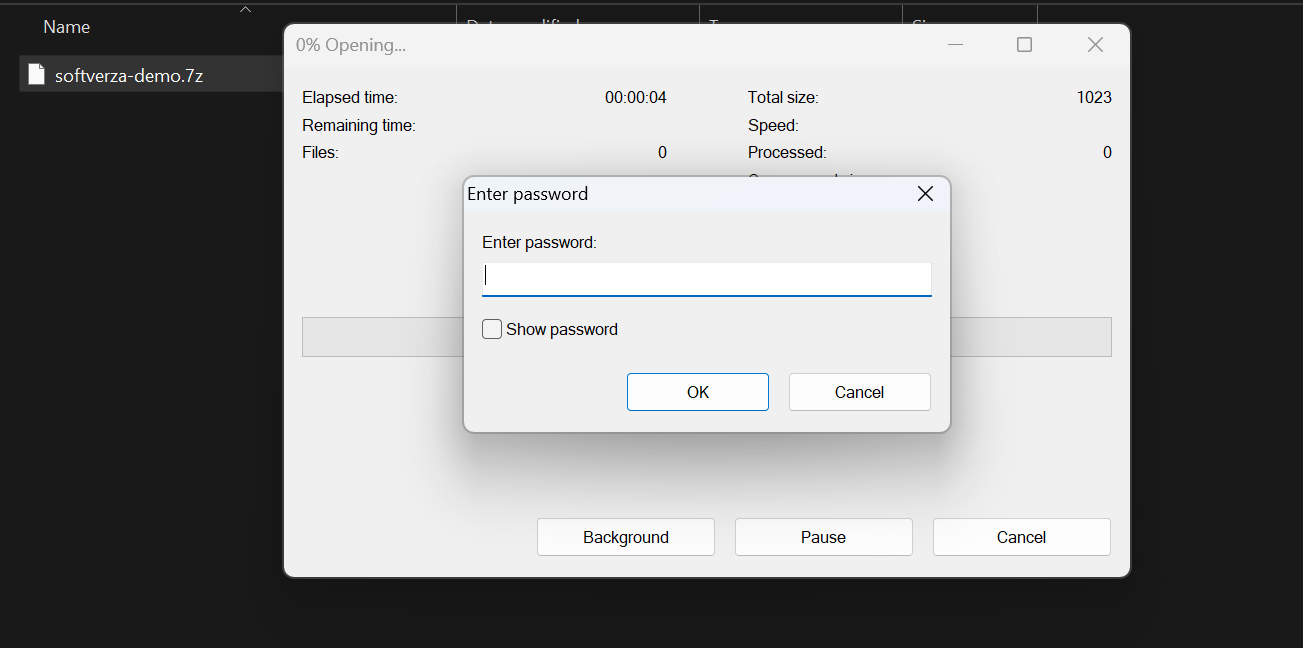
Opening the test archive produced an Enter password prompt before internal filenames were shown in this captured state. The still image alone does not prove a fresh-process sequence. The later opened-archive image shows all three filenames after the owner supplied the correct password, with + in the Encrypted column. These images support the reported sequence, but still screenshots alone do not independently establish a fresh-process chronology. Do not generalize the observation to every application or configuration.
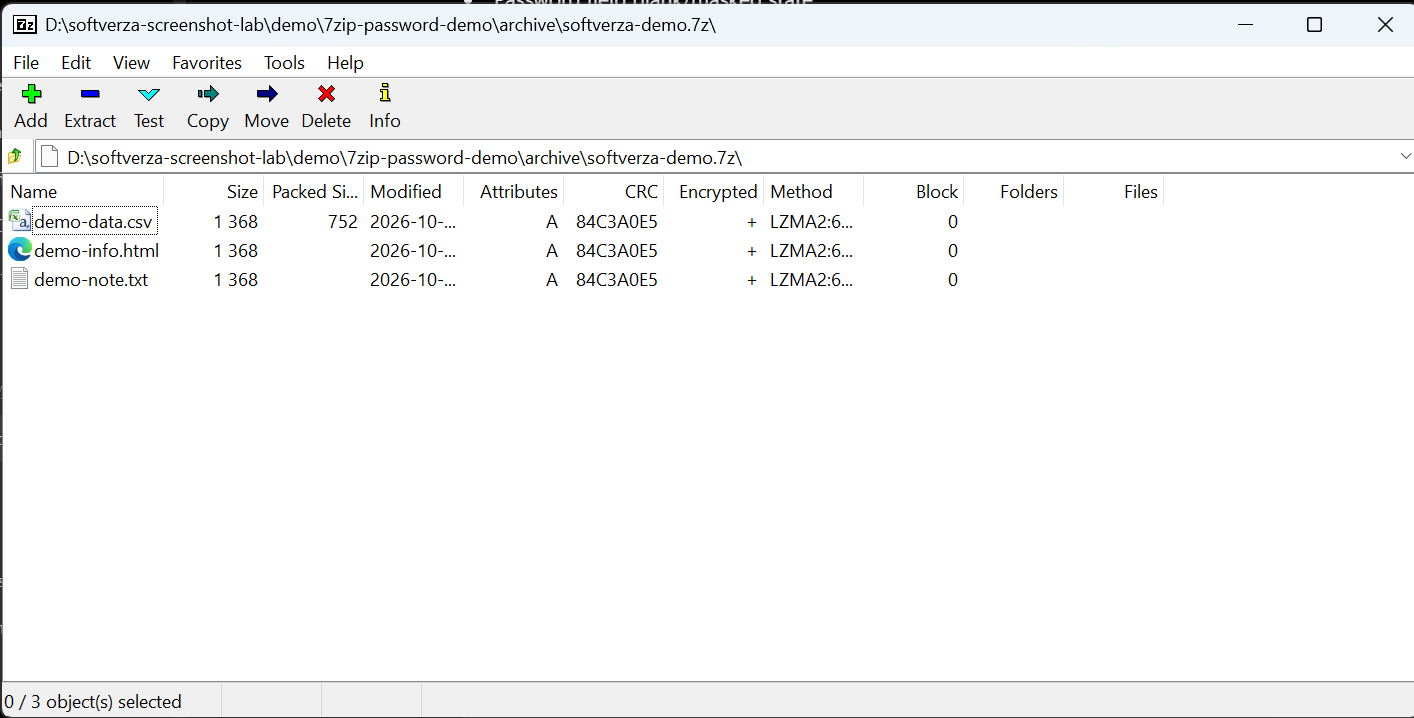
After the owner supplied the correct password, the three synthetic filenames were visible; the Encrypted column showed +. -
Extract separately and compare saved bytes. Extraction produced the three expected files in a separate verification folder, not over the sources. Explorer hides extensions in the extraction screenshot; independent filesystem checks confirmed their full names. Each source matched its corresponding backup and extracted copy by SHA-256. All nine copies shared
4D0FCEE44BD65EA0A0C983DA992B053D6F5D94A25E91EAE6A783F59FB5EF0CC1because the three samples had identical content; the same hash was not assumed or copied between comparisons.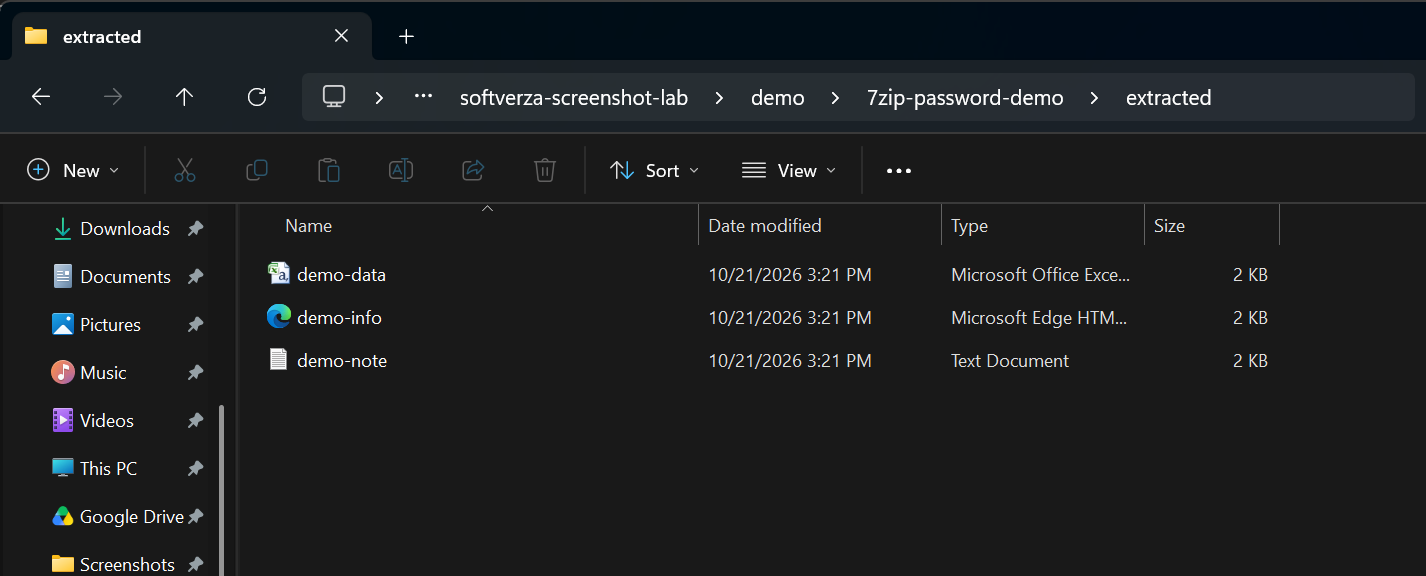
Explorer hides extensions in this view. Independent filesystem inspection confirmed the three expected extracted files, and SHA-256 checks matched them with their source and backup copies.
The sources and backups remained present and readable. This verifies a byte-preserving round trip for these samples, not a cryptographic audit, secure deletion, password recovery or universal compatibility. Creating the encrypted archive did not encrypt the retained original files in place. Keep recoverable copies while testing, and do not decide what to do with originals until opening and extraction have been checked.
Recipient compatibility and sharing
The recipient needs an application that supports the chosen format and encryption method, plus the correct password. A ZIP extension alone is insufficient evidence, and this tutorial does not claim built-in Windows support for encrypted archives. Test the actual recipient workflow when compatibility matters.
Where practical, communicate the password separately from the archive rather than putting both in the same insecure message. This reduces an avoidable disclosure risk but is not a secure-delivery guarantee. For the broader Windows-tool distinction, see 7-Zip vs Windows built-in compression.
Can you add a password to an existing archive?
A reliable in-place conversion of an existing archive’s protection is not verified in this tutorial. The verified procedure here starts from source files and writes a new encrypted archive. Do not assume that entering a password while updating an older archive retroactively protects every existing entry.
Adding files later, changing passwords, and converting existing encryption are outside this guide’s verified workflow. Keep the original material and make a separately named output when following these steps.
What if you forget the password?
Do not rely on a forgotten archive password being reset like an online account password. The 7-Zip maintainer has stated that the application does not provide a built-in recovery feature in an official project support reply. That is not an absolute claim about mathematical impossibility or every external circumstance.
Store the password securely and preserve the originals or backups you need. This guide provides no cracking tools, bypass methods, brute-force steps or password-recovery procedure.
Common mistakes
- Expecting ZIP to offer the 7z filename-encryption option.
- Assuming encrypted file contents mean every name and all metadata are hidden.
- Choosing a method without checking recipient support.
- Using a reused password or revealing it alongside the archive unnecessarily.
- Updating an existing archive when you intended to create a separate protected copy.
- Deleting originals before checking extraction.
Frequently asked questions
Is password protection the same as encryption here?
In this archive-creation workflow, a password is used for the format’s encryption, not merely a cosmetic interface lock. It does not make unknown files safe to run or replace good password and storage practices.
Does 7-Zip use AES-256 for ZIP too?
It supports that choice, but ZIP also offers ZipCrypto in the verified selector. Check the actual method instead of treating all password-protected ZIP files as identical.
Will hiding filenames conceal the archive itself?
No. The 7z option concerns internal names; it does not hide the outer archive file from the folder where it is stored.
Should everyone use 7z rather than ZIP?
No universal choice is established here. Match the task and recipient support. Our verified archive format and feature matrix provides broader product context without replacing this task-specific workflow.
How this tutorial was prepared
SoftVerza prepared this tutorial using current official 7-Zip release information, format documentation, release-tagged Windows GUI resources and implementation, and verified SoftVerza reference material. No controlled encryption-speed, password-strength, cross-application compatibility, or password-recovery benchmark was performed. The general instructions remain source-based. The controlled example adds owner-assisted observations in 7-Zip 26.04 (x64), with separate checks of screenshots and source, backup and extracted file hashes; it does not establish hands-on testing of every feature described here.
Official sources
- 7-Zip official features, current download/version information, and 7z format documentation.
- 26.04 archive-creation dialog resources and format-dependent controls and validation.
- File Manager Add and Extract labels and password-prompt resources.
- Maintainer reply on the application’s recovery-feature boundary; no external recovery instructions are reproduced.
Sources checked October 16, 2026. Release-tagged source evidence supports the general guidance; the controlled example separately documents the observed three-sample 7z workflow, not universal compatibility.
Final checklist
- New destination and intended files selected.
- Archive format and encryption method reviewed.
- Unique password stored securely; filename option checked if needed.
- Originals retained and separate extraction verified.
- Recipient support checked before relying on delivery.