
A silent OBS recording does not always mean OBS captured no audio stream. The file might contain an audio track filled with silence, your player might be playing the wrong track, or Windows might be sending playback to another device. Moving OBS meters are useful clues, but they do not prove that the saved recording contains the sound you need.
Start by separating playback problems from capture and routing problems. If the correct OBS source has meter activity but the saved file is silent, compare that source’s track assignments with the tracks your recording actually includes.
Testing context: This guide combines official OBS and Microsoft documentation with one controlled, two-recording test in OBS Studio 33.0.0 on Windows 11. The hands-on test used a looping synthetic WAV source named Media, Simple output, and Recording Quality set to Same as stream. It tested one source-to-recording-track mismatch, not microphones, desktop devices, application capture, streaming, or other output modes. General troubleshooting below is documentation-led unless explicitly identified as our test.
For product background, see the OBS Studio software profile. For a first recording rather than fault diagnosis, use our OBS screen-recording tutorial.
1. Quick Checks: Identify Where the Sound Goes Missing
Keep the original recording. Change one setting at a time and make a new test file rather than overwriting important footage.
Rule Out a Playback Problem
Play a known-good audio file through the same player and headphones or speakers. Check the player’s own volume, then Windows Settings > System > Sound > Volume mixer. Confirm that the player is not muted and is using the intended output device. Microsoft documents these per-app volume and output-device checks.
If your OBS file contains several audio tracks, inspect the player’s audio-track menu and try the other tracks. Hearing one track does not mean all recorded sources were combined into it.
Check the Intended OBS Source
While the intended sound is playing, look at its entry in OBS’s Audio Mixer. Check the source name, meter activity, output mute control, and volume fader. Do not unmute unrelated microphones or other private inputs merely to troubleshoot one source. The official mixer guide distinguishes the meter, output mute, and monitoring controls.
Our test source was named Media; yours might be Desktop Audio, Mic/Aux, an application name, or a custom label. Follow the source that should supply the missing sound.
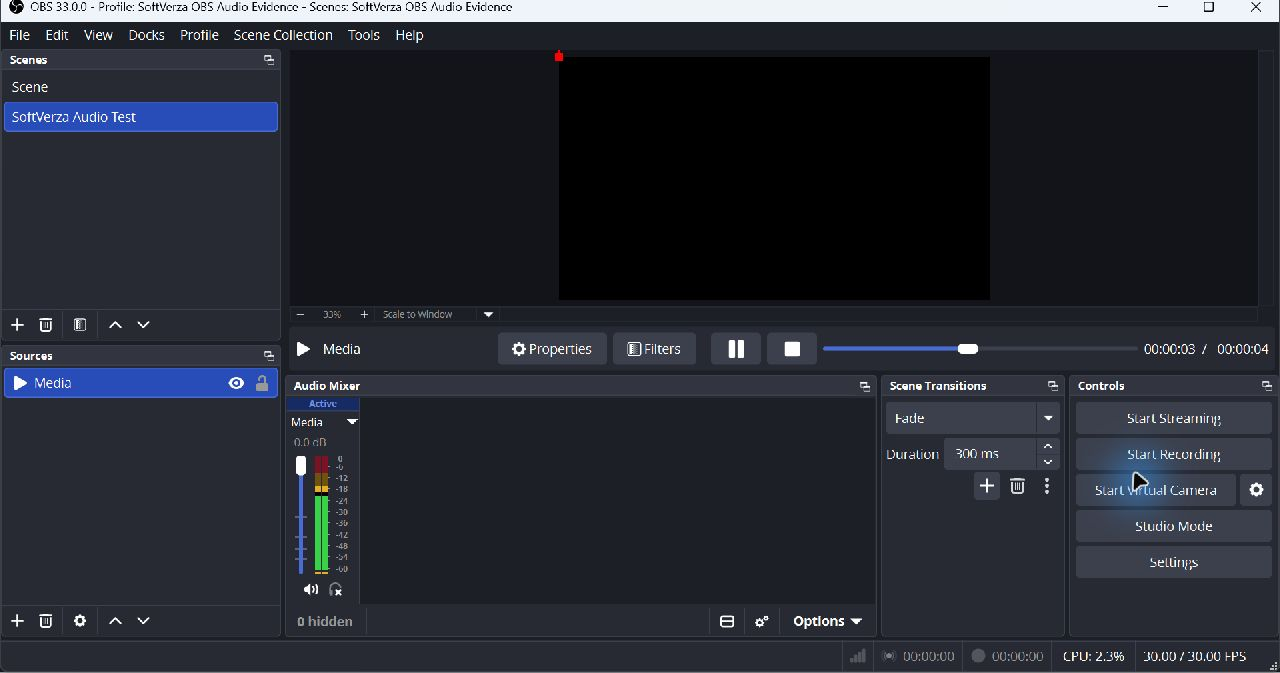
Distinguish the File’s Symptoms
- No audio stream: the file has no encoded audio stream to play. Inspect the selected recording output and its audio configuration. A format or output that omits audio is not repaired by increasing playback volume.
- Audio stream containing silence: a stream exists, but its decoded samples contain no signal. Source routing and mute state remain relevant. This was our before-test result.
- Active meters, silent file: sound reaches the metered source, but it may not reach the recorded track. Follow Sections 2 and 3.
- Audio exists but cannot be heard in one player: check track selection, playback routing, and format/codec support before changing OBS.
The file extension alone cannot distinguish these cases. Do not convert or rename your only copy as a first repair step.
2. Check OBS Recording Audio Tracks
There are two separate questions: Which tracks does OBS write? And which of those tracks contain this source? A source assigned only to an unrecorded track will not supply that sound to the saved output.
Open Settings > Output and inspect the existing output mode, recording format, and recording audio-track settings. In an Advanced Standard recording setup, inspect the Recording section’s enabled tracks. Then compare those numbers with the source assignments described below. Do not switch output modes or reset a working multi-track layout just to match an example.
OBS’s multiple-audio-track guide explains this pairing. It also warns that ordinary playback commonly selects one audio track rather than mixing every track together. A combined listening track plus separate editing tracks can be useful, but is a deliberate layout choice, not a mandatory reset.
Our tested configuration is narrower: OBS 33.0.0, Simple output, Same as stream, recorded Track 1. The source was assigned to Tracks 2-6 but excluded from Track 1. The resulting AAC stream was silent. The version-pinned OBS 33.0.0 Simple output implementation corroborates the encoder/Track 1 mapping for this quality mode. That is not a claim that every Simple output preset has identical controls or behavior.
Merely detecting AAC is not a successful audio test: AAC identifies an encoding format, not whether the samples contain the intended sound.
3. Check Advanced Audio Properties
- In OBS, open Edit > Advanced Audio Properties.
- Find the row for the source that should be audible. In our screenshots it is
Media. - Compare its Tracks checkboxes with the track or tracks selected for recording.
- If the source is missing from a track that should include it, enable that specific assignment. Preserve intentional separation on your other tracks.
- Close the dialog and verify a new short local recording.
In our before state, the first Tracks checkbox was unchecked; Tracks 2-6 were checked.

We enabled only that first checkbox. Tracks 2-6 remained checked.

Version note: These are OBS 33.0.0 screenshots. Audio Monitoring appears as an Enable checkbox, separate from output mute and track assignment. Older screenshots may show different monitoring controls. The 33.0.0 Advanced Audio Properties implementation confirms these independent controls. Turning monitoring on is not a substitute for assigning a source to the recorded track.
4. What Our Controlled Before/After Test Verified
We used one looping, eight-second stereo WAV containing generated 440 Hz and 660 Hz tones, with no speech or music. The two recordings retained Simple / Same as stream output and Hybrid MP4 format. The source stayed unmuted at 0 dB, with monitoring off. Only its Track 1 assignment changed in the saved source-state comparison.
| Observation | Before | After |
|---|---|---|
| Media assigned to Track 1 | OFF | ON |
| Media assigned to Tracks 2-6 | ON | ON, unchanged |
| AAC audio stream | Present | Present |
| Decoded audio | Digital silence | Non-silent signal |
| Full-file RMS | -infinity dBFS | -21.49 dBFS |
| Intended 440/660 Hz tones | Absent | Detected |
| Recording duration | 19.27 seconds | 23.17 seconds |
RMS is a signal-level measurement; you do not need to calculate it to troubleshoot a recording. Here, the before file decoded to zero-valued audio samples. The after file contained measurable signal consistent with the known tones, not just an audio-stream label. The level is a measurement of this synthetic test, not a recommended loudness target.
Exactly two recordings were made. UI timing made them longer than the planned 6-10 seconds and unequal in duration. Both full files and a common 2-8 second interval were analyzed. The measured result supports this particular routing fix; it is not a performance comparison, perceptual listening-quality assessment, or proof that enabling Track 1 fixes every silent recording.
The experiment did not test a microphone, Windows audio-device routing, application audio capture, livestreaming, every media player, or other OBS recording modes.
5. Other Possible Causes to Check
The following are documented troubleshooting branches, not additional hands-on test results.
Wrong Desktop Audio Device
If computer sound produces no activity on the intended source, inspect the device selected in OBS Settings > Audio, or in an existing scene-specific Audio Output Capture source’s properties. Compare that device with the output used by the application in Windows Volume mixer. OBS’s audio-source documentation describes scene-specific device selection and warns against capturing the same device both globally and through another source, which can create echo. Avoid adding duplicate inputs while diagnosing the original one.
Microphone Is Muted or Unavailable
For microphone-only problems, check the hardware mute switch and connection first. Use Windows Settings > System > Sound > Input to inspect and test the intended microphone. If access is blocked, check Privacy & security > Microphone, including Let desktop apps access your microphone. Microsoft notes that desktop applications do not use the same individual permission list as Store apps. Follow Microsoft’s microphone troubleshooting guide for this branch. Microphone permission is not a blanket fix for silent desktop audio.
Application Audio Capture Targets the Wrong App
Inspect the selected application/window in the existing source’s properties, and confirm that the application itself is producing sound. OBS’s Application Audio Capture guide documents selecting the target and notes that some applications are incompatible. Do not assume every Window Capture source includes application audio automatically. Avoid installing virtual audio drivers as a first troubleshooting step.
Monitoring Is Confused With Recording
Monitoring lets you hear a source through the configured monitoring device. In the tested OBS 33.0.0 interface, monitoring, output mute, and track assignment are separate. Our successful recording had monitoring off. If you hear a monitored source but not the file, inspect the recording route; do not treat headphone monitoring as proof of saved audio.
The Player Is Using an Unexpected Track
For a multi-track file, choose the track that contains the intended mix. If separate microphone and desktop tracks are intentional, inspect them in a compatible editor. Do not discard a file just because its default playback track omits one source.
6. How to Verify the Fix
Simple Listening Check
- Use a short, harmless test sound and only the inputs you intend to record. Keep private speech and notifications out of the test.
- Note your selected source and recording track, then make a new short local recording, not a stream.
- Stop normally and let OBS finish saving.
- Open the new file. Check player volume, Windows output, and the intended audio track.
- Listen for the expected sound through the beginning, middle, and end. If you record separate tracks, verify each required track rather than only the default one.
These are recommended reader verification steps. Our experiment’s outcome was established through file inspection and signal analysis, not a subjective playback-quality test. Keep your original configuration notes so an unhelpful change can be reversed deliberately.
Optional Advanced File Inspection
A media inspector can list the file’s audio streams, codecs, sample rates, channels, and durations. That separates no stream from stream present, but cannot by itself establish audible content. Waveform inspection or decoding is needed to identify digital silence. Our private QA used ffprobe and FFmpeg signal analysis; ordinary users do not need these tools or an RMS target to verify that their intended sound is present.
If the file is still silent, identify the exact failing source and track before changing more settings. For official support, describe the OBS version, output mode, recording format, selected source/device, and whether meters move. Review logs and screenshots for private paths, account information, and credentials before sharing them. Never post stream keys.
7. Frequently Asked Questions
Why Do OBS Meters Move While My Recording Is Silent?
A meter can show activity at a source that is not assigned to the recorded track. That happened in our bounded test. Other causes still need separate checks; the meter does not establish the contents of the saved file.
Does an AAC Audio Stream Prove That Sound Was Recorded?
No. Our before file contained AAC audio that decoded to digital silence. Confirm the intended signal through playback or appropriate file analysis.
Should I Enable Track 1 for Every Source?
Only if those sources belong in the mix you intend to record or play. Track 1 was required in our specific tested route. Preserve deliberate multi-track separation and exclude private or unwanted sources.
Can I Recover Sound That Was Never Recorded?
Not from a track containing only digital silence. First check whether another recorded track contains the missing source, and preserve the original file. If the sound is absent from every recorded track, changing OBS afterward cannot recreate it.
Conclusion
Check playback first, then follow the intended OBS source into the recorded track. In our OBS 33.0.0 Simple / Same as stream test, adding Media to Track 1 changed a silent AAC recording into one containing the expected synthetic tones. Use that as a verified example of a routing mismatch, not a universal cure. Confirm your own saved result before relying on the setup for an important session.