
If VLC is slow to open, first check what is actually taking time: the VLC window appearing, or a particular file beginning playback. Those symptoms can look similar but need different troubleshooting paths.
This guide focuses on launch and file-opening delays on Windows 11. Buffering, stuttering, codec failures and subtitle synchronization are separate problems. A delay occurring on Windows 11 does not, by itself, establish that Windows caused it.
Quick answer
Open VLC without selecting media, then compare a known-good local file with the file that opens slowly. Check the stable release before changing settings. If necessary, preserve your custom settings before trying an official preferences reset. Change one thing at a time, and collect useful details if the delay persists. These are diagnostic checks, not guaranteed speed fixes.
First, identify where the delay happens
Note which description matches:
- The VLC window appears late: investigate application launch separately from media access.
- The window opens promptly, but playback starts late: compare files and locations first.
- Only the first launch after restarting Windows is slow: record that difference rather than assuming a cause.
- Every launch is slow: check whether the same behavior occurs without media.
- Only one file or location is slow: isolate that file, drive or network route.
Avoid repeatedly double-clicking while waiting: it makes the sequence harder to interpret. Record how you launched VLC and what happened next. If video fails after the window opens, use our VLC playback troubleshooting guide rather than applying unrelated launch fixes.
1. Open VLC without opening a media file
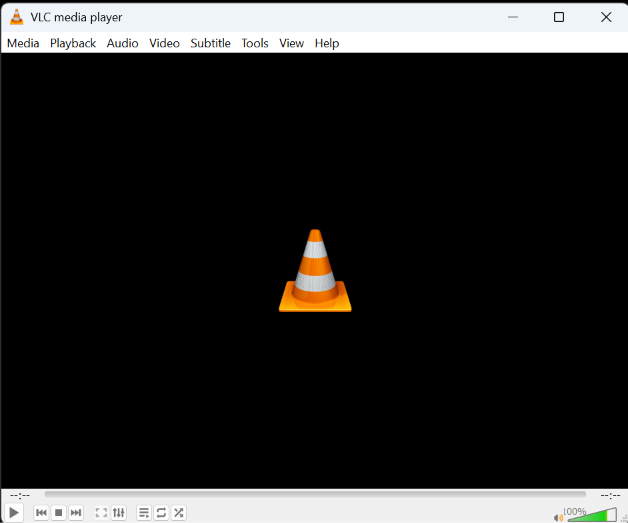
Close VLC normally after any recording or conversion has finished. Launch the installed application from its normal Start menu entry, without selecting a video, playlist or stream.
Does the main window become usable promptly, or is that where the delay occurs? Compare this with your usual launch method. A prompt empty window followed by a delayed file opening points the investigation toward the media-opening path; it does not identify the underlying cause.
2. Compare with a local media file
Choose a small, known-good file you own that is already stored locally. Open it from inside VLC, then compare the affected file using the same route. Separately note whether double-clicking that file behaves differently.
This comparison is a diagnostic control, not a repair. If only one file behaves differently, record its type and location before changing VLC settings. If the window is ready but playback remains problematic, follow the playback guide instead of treating every media problem as slow startup. Do not download unfamiliar files merely to run this check.
3. Check whether the delay is tied to a network or removable location
If the affected media is on a network share, external drive or removable device, compare an accessible local copy where you have permission to make one. Keep the launch method consistent.
A difference helps narrow the investigation to file access or location-related conditions; it does not prove VLC has a network-path bug. Do not delete drive mappings, change credentials or clear recent history blindly. Finish active transfers before disconnecting any device, and do not unplug storage while it is being written to. If a location is unavailable, record that rather than repeatedly trying to open it.
4. Check that you are running the current stable VLC release
As verified on October 21, 2026, the official VLC Windows download page lists 3.0.24. Check your installed version before deciding whether an update is relevant. Our VLC software profile provides related product and official-source context.
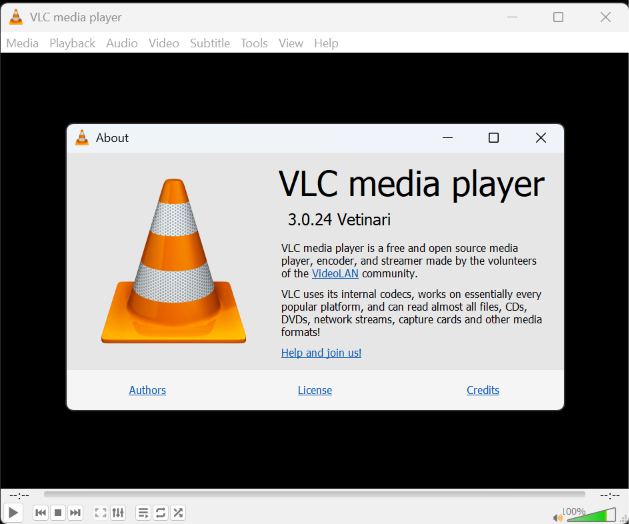
VideoLAN’s 3.0.24 release notes specifically document a fix for slow Windows startup associated with daylight-saving-time changes. That is one scoped, documented case, not evidence that every slow launch has that cause. Do not change your system clock to troubleshoot it.
If updating, use the official stable source. An update is not a promise that an unrelated delay will disappear. VideoLAN classifies nightly builds as experimental and unstable; they are not the default remedy for this guide.
5. Reset VLC preferences only after backing up or noting custom settings
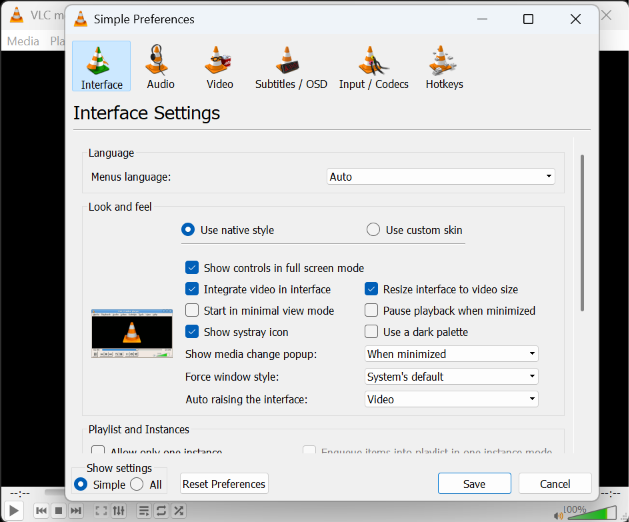
VideoLAN’s preferences documentation describes Tools > Preferences > Reset Preferences as a troubleshooting option. It discusses incorrect settings and broken plugin cache among possible VLC problems. That does not diagnose your particular delay as corruption.
Before resetting, note the options you need to restore. For an important customized setup, preserve a recoverable configuration backup first or ask for help. Do not proceed if you cannot afford to lose your current settings. Read the confirmation, then restart VLC normally and compare the same launch case. Do not blindly delete configuration or installation folders, and do not assume a preferences reset repairs every cache-related problem.
6. Check custom shortcuts, extensions or unusual configuration
If you use a customized shortcut, compare it with the normal application entry. If you have knowingly added optional extensions or changed the interface, record those changes for support.
This is diagnostic advice, not evidence that extensions cause slow startup. Skip this branch if you have no relevant customizations. Do not delete bundled plugins or codecs. Only reverse a customization when you understand how to restore it; a separate clean-configuration test should also have a recovery plan.
7. Restart and retest one variable at a time
After a change, close and reopen VLC normally, then repeat the same test. Record whether the window or the start of playback changed. Do not combine an update, reset and reinstall and then attribute the result to one step.
If comparing behavior after a Windows restart, save other work first. Keep first-after-restart observations separate from later launches; neither establishes a universal startup time or proves the cause.
8. Reinstall only if simpler checks do not isolate the issue
A reinstall is a later fallback when an installation problem remains plausible, not a guaranteed cure. Preserve settings you need and use the official stable download. Do not remove personal media or unrelated folders.
Keep a record of the previous version and symptom before reinstalling. Do not assume reinstalling automatically removes your saved configuration. If the delay remains, stop repeating the same installation and move to a support report with the comparisons you have already made.
9. Collect useful diagnostic information before asking for support
Prepare a short record containing:
- Windows version/build and VLC version, including architecture if known.
- Whether the first launch, every launch, or only file opening is affected.
- Your launch method and the point where the delay ends.
- Whether VLC alone and a known-good local file behave differently.
- The affected file type and whether its location is local, removable or network-based.
- Changes tried individually and their observed results.
VideoLAN’s desktop bug-report guidance asks for reproducible steps, environment details and relevant logs. A Messages window opened after startup may miss the launch interval, so ask support for an appropriate capture method if needed. Review logs for private paths, addresses or credentials before sharing them. Do not post confidential media samples.
When should you report the issue?
Ask for help when the delay is repeatable on the current stable release and your notes distinguish direct launch from file loading. Use VideoLAN’s official support guidance to find the appropriate route. Describe the symptom rather than declaring an unproven Windows, antivirus or cache bug. Check for an existing matching report before submitting a new one.
FAQ
Why does VLC take so long to open?
There is no single cause established for every case. Start with no-media launch versus file opening, then narrow the conditions before changing settings.
Why is only the first launch slow?
That pattern is useful evidence, not a diagnosis. Record it separately from subsequent launches and include it in a support request if persistent.
Why does VLC open quickly but the video starts late?
That is a media-opening symptom rather than necessarily application startup. Compare a local file and use the playback troubleshooting guide when appropriate. Subtitle timing is separate; see our VLC subtitle-delay tutorial for synchronization issues.
Should I reset preferences or reinstall?
Consider a backed-up preferences reset after simpler checks, and reinstall only as a later fallback. Neither is guaranteed to resolve the delay.
Can antivirus cause VLC to open slowly?
This guide has not verified that as the cause of your delay. If a security alert appears, consult Windows Security Protection History and trusted support. Do not disable antivirus, add broad exclusions or bypass a warning merely to test launch speed.
Should I use a nightly build?
Not as a routine fix. Stay with the official stable release unless a maintainer recommends a specific, clearly explained diagnostic test.
Methodology and official sources
This guide was prepared from official VideoLAN documentation and relevant Microsoft guidance. SoftVerza did not reproduce a startup delay, run a controlled startup benchmark or verify that a particular fix improves launch time. The comparison steps are diagnostic advice, not confirmed causes. Version information was checked on October 21, 2026.
Sources are linked beside the relevant facts: VideoLAN’s Windows downloads, 3.0.24 release notes, preferences documentation, nightly-build warning and support guidance, plus Microsoft’s Protection History documentation. For general product context, see our VLC review.