
ShareX scrolling capture can fail in several different ways: the target stays still, scrolling ends too soon, or the saved image contains less than you expected. Start by identifying that pattern rather than applying every suggested fix at once.
Windows 11 appears in user reports, but that does not establish Windows itself as the cause. This guide separates documented limitations, reported symptoms, and diagnostic steps you can try without assuming they will solve every case.
Quick answer
Confirm the capture mode, check that the intended pane scrolls normally, then compare a simple page with the troublesome target. Page elements, application behavior, or ShareX-specific issues may be involved. Keep version and release-channel details beside your results. Treat the steps below as diagnosis, not guaranteed repairs.
First, identify what is going wrong
Watch the target during capture and compare it with the resulting image:
- Nothing scrolls: investigate the selected pane and whether it receives input.
- The target scrolls, but one image remains: distinguish input from output assembly.
- Scrolling stops early: record where it stops and whether another attempt stops there too.
- The result is distorted: look for repeated sections, missing content, or changing page elements.
These observations help describe the failure; they do not establish its cause. Keep the original result so you can compare later attempts fairly.
1. Confirm you are using Scrolling capture
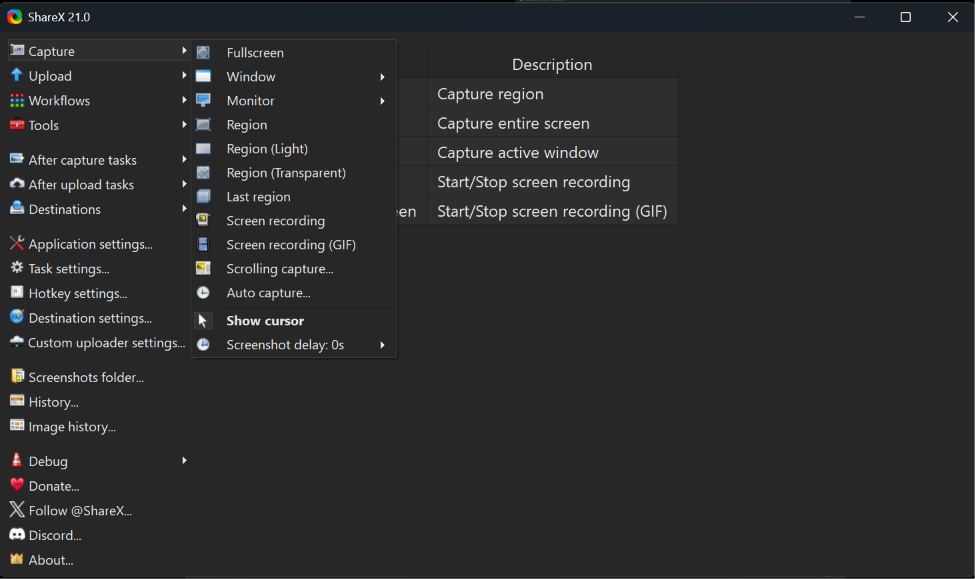
The official instructions specify Capture → Scrolling capture…, followed by region selection. This mode joins successive screenshots; an ordinary region screenshot is not the same workflow.
If you need the broader basics, use our ShareX screenshot guide. Here, check only the selected mode and intended target before continuing.
2. Check whether the target window can scroll normally
Before starting capture, try scrolling the intended content yourself. A window can contain a main page, a sidebar, and a separate results table; identify which one contains the missing information.
This is diagnostic advice. If the intended pane does not move manually, first establish how that application exposes additional content. If it does move, note where the pointer was and which pane changed. That gives your next capture attempt a specific target rather than an ambiguous whole window.
3. Focus the target window before starting
As a diagnostic comparison, activate the intended window and click a harmless part of its scrollable content before reopening the capture workflow. Avoid controls that submit, delete, or alter anything. Compare the result with your earlier attempt.
Issue #8837 describes a development-build case involving target activation, missed scrolling, and early termination. That is a user report, not confirmation that focus causes every failure or that clicking fixes stable releases. Do not patch application files based on the issue’s proposed code changes.
4. Exclude fixed headers, animations, hover effects, or changing content
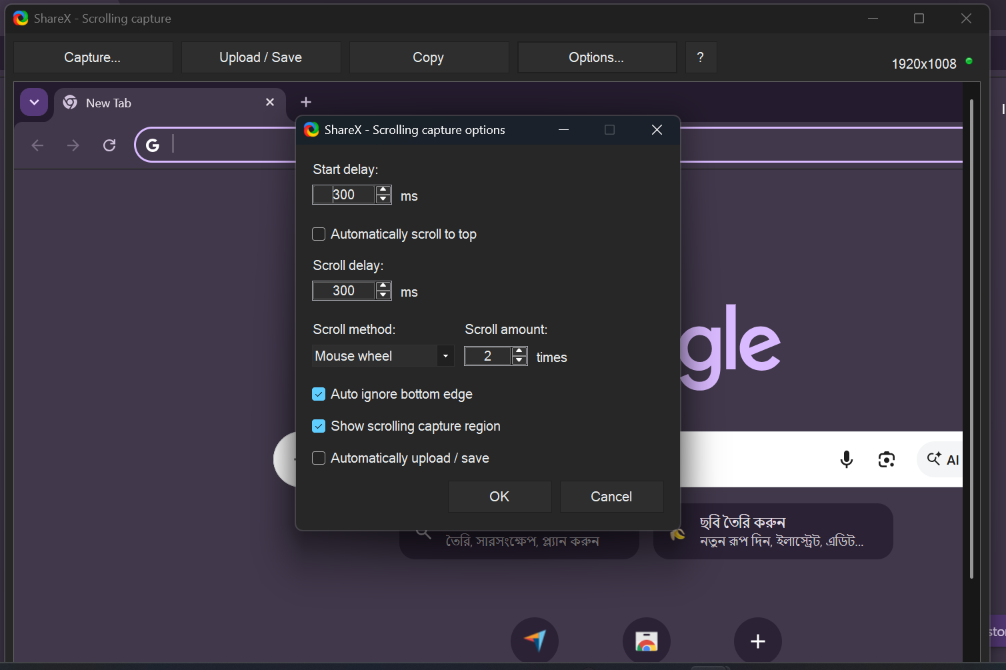
ShareX documents matching difficulties involving stationary page elements, animation, and hover effects. It recommends a custom capture region that excludes interfering elements and positioning the pointer away from hover-sensitive content, preferably near the scrollbar’s top.
For diagnosis, compare a content-only region with the original selection. Keep a note of what you excluded. Do not call a cropped result complete if it omits information you actually need.
5. Try a simple page or another application
Use a harmless, finite page with mostly text and a clear scrollbar as a comparison target. Then repeat the original capture. If practical, compare the same content in another browser while leaving other conditions unchanged.
This isolates variables; it is not a promise that changing browser repairs ShareX. A working comparison suggests the failure depends on something different about the original target or setup, but does not identify exactly what. Different browser layouts, nested panes, or page states can make an apparently similar test less comparable than it first looks.
6. Diagnose one-frame or static-image output
Record whether the target visibly moved. A stationary target and a moving target whose output contains one frame are different symptoms, even if the final pictures look similar.
Issue #8586 reports scrolling through a qBittorrent web interface in Edge while retaining only the initial portion in the output. Its environment includes Windows 10 and ShareX 19.0.2/20.0.4. It does not demonstrate a universal Windows 11 or current-stable defect.
Separately, issue #8692 describes incomplete scrolling in 20.2. Use these reports to recognize and explain symptoms, not to declare your installation has the same cause.
ShareX documents green, yellow, and red result indicators. Red means the initial image pair could not be joined; yellow indicates imperfect matching. Record any indicator alongside the missing content, rather than relying on color alone to judge completeness.
7. Restart ShareX and the target application, then retest
Save any unfinished work first. Close and reopen ShareX and the target application, return to the same content, and repeat your recorded steps.
This is a diagnostic reset, not an established fix for the reports above. If the next attempt differs, record that difference without concluding the underlying problem is permanently resolved. Avoid combining the restart with a reinstall, settings reset, and browser change: you would lose the ability to tell which change mattered. Do not disable security protections to make a capture work.
8. Check your ShareX version and release channel
As checked on October 20, 2026, GitHub identifies ShareX 21.0.0 as the latest stable release, published July 3, 2026. 22.0.0, published October 20, is marked Pre-release. A larger version number alone does not establish stable status.
Record your installed version and channel before changing either. Do not switch to a prerelease as the default troubleshooting step, and do not assume a newer build fixes your symptom unless relevant official evidence supports that conclusion. If you later choose to update, use official release information and preserve your diagnostic notes. The ShareX software profile provides general product context.
9. Reproduce the issue one variable at a time
Make a short comparison record: target application, page or pane, selection, symptom, and result. Repeat the same setup once, then change just one factor, such as the selected region or target application.
Choose a finite page so you can identify its beginning and end. Compare those landmarks with the output rather than judging by image height alone. Record uncertain results as uncertain. If the failure is intermittent, say how many attempts you made; one working capture does not prove all targets are compatible, and one failed attempt does not prove a universal bug.
10. Collect useful evidence before reporting a bug
A useful report lets someone understand the environment and attempt the same workflow. Include:
- Windows version and build, plus exact ShareX version and stable/prerelease/development status.
- Target browser or application and its version.
- The selected pane or region and whether manual scrolling works.
- Reproduction steps, expected output, and actual output.
- Whether another target works and whether the failure repeats.
- Relevant screenshots or log excerpts, if safe to share.
Review every attachment for private URLs, account details, filenames, tokens, and captured personal information. Prefer a harmless reproducible example over a private dashboard. Describe any redaction and share only relevant log material, not an unreviewed settings bundle. No report needs your passwords or uploader credentials.
When should you report the issue to ShareX?
Report a repeatable failure when your environment and steps are clear, especially if a simple target also fails. Search existing issues first; add genuinely relevant details rather than treating a similar title as proof of the same defect.
Issue #8111 includes a Windows 11 24H2 report. A contributor acknowledged an OS-detection problem, but that is not confirmation of the scrolling failure’s cause. Keep that distinction when describing Windows-specific behavior. For broader context, see the full ShareX review or our troubleshooting archive.
FAQ
Why does ShareX scrolling capture not scroll?
The symptom alone does not establish why. Check the capture mode, intended scroll pane, manual input, and a simple comparison target. Treat focus testing as diagnosis, not a confirmed universal fix.
Why does ShareX capture only one image?
First distinguish a target that never moves from one that scrolls but produces incomplete output. The issue reports above describe examples, but they do not diagnose your environment.
Can fixed headers interfere with scrolling capture?
Yes. Official documentation identifies static elements as a matching problem. Compare a custom region that leaves them out, then check whether the needed content remains included.
Is scrolling capture broken on Windows 11?
There are Windows 11 reports, but also reports from other environments. Available evidence does not establish that Windows 11 universally causes the problem.
Should I install a prerelease to fix it?
Not by default. Check the release label and relevant official information; do not assume a higher version fixes an unconfirmed cause.
What belongs in a bug report?
Exact versions, target details, repeatable steps, expected versus actual behavior, and relevant sanitized evidence. Clearly separate what you observed from what you suspect.
Methodology and official sources
This guide was prepared from official ShareX documentation, release information, and reports in the project’s GitHub issue tracker. We did not perform hands-on reproduction or a controlled capture test. Reported environments are examples; diagnostic suggestions are not guaranteed fixes. Sources and release classifications were checked October 20, 2026.